
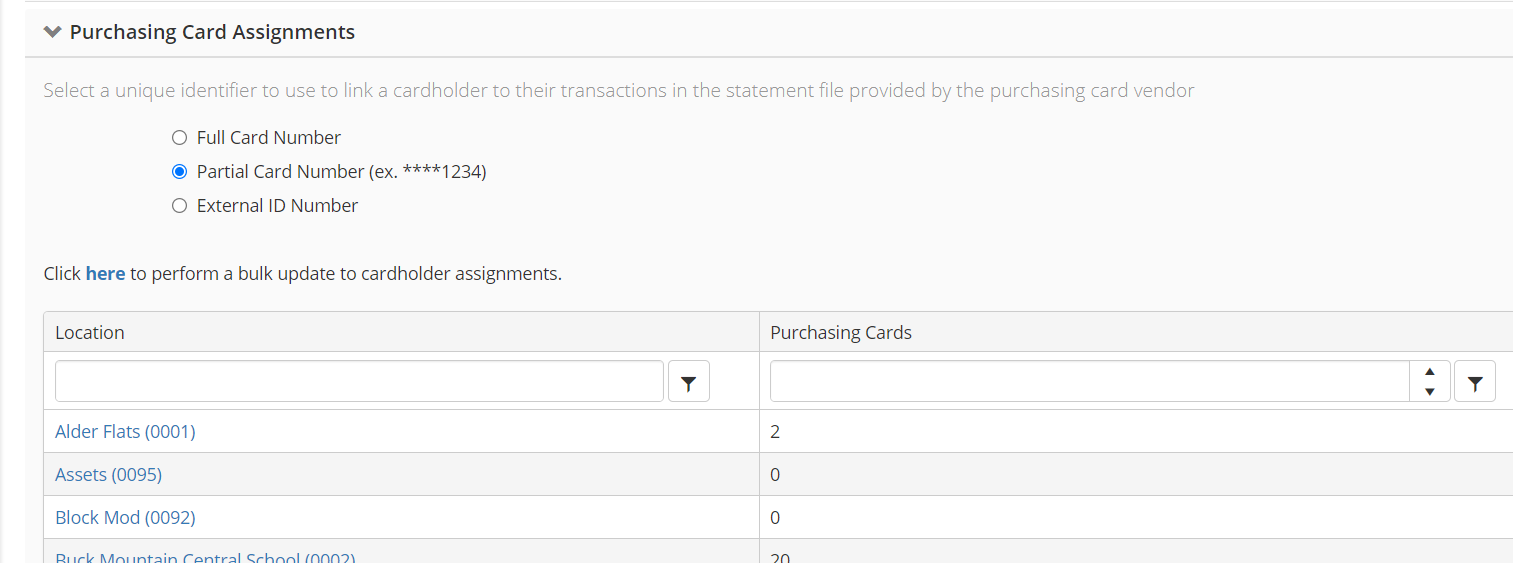
The Purchasing Card Assignments section is where you will add, edit, view, or remove employee purchasing card assignments. This wall allow you to specify how you set up P-Card holders and the import file. Options are Full Card Number, Parital Card Number or External ID.
-
Click the Purchasing Card Assignments panel header to expand the section
-
All locations in the district will display in the grid along with the number of purchasing card holders at that location.
-
To quickly find a specific location, type the name in the text field located in the first row of the grid. Or, for additional filtering click the filter icon i.e. to filter the list to display all secondary schools only
-
Click on Location name hyperlink to view or make changes to the purchasing card assignments at that location
-
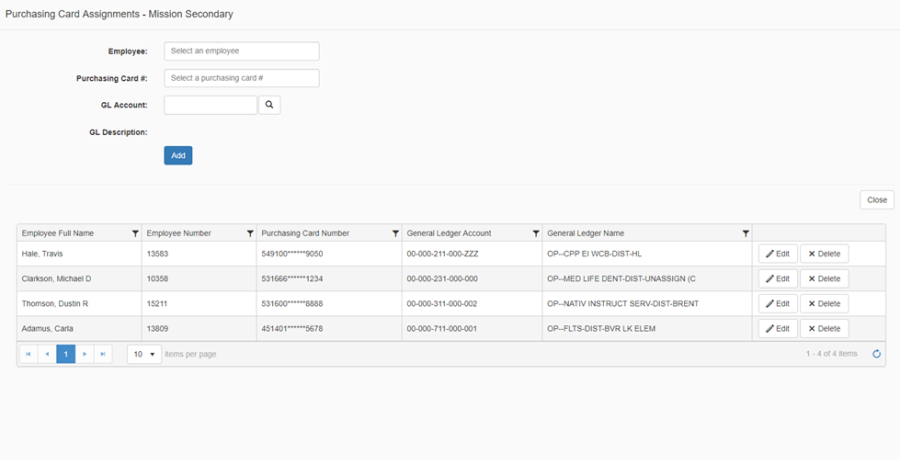
To add a new card assignment, search for the employee at the selected location
-
Enter the Purchasing Card #
-
Optional, enter the default GL Account number
-
To Edit a previously saved assignment, click the corresponding Edit button
-
To Delete a previously saved assignment, click the corresponding Delete button
-
Click Close to save any changes made