
The District Transaction summary page provides full access to all locations in the district and access to all purchasing card holder transactions.
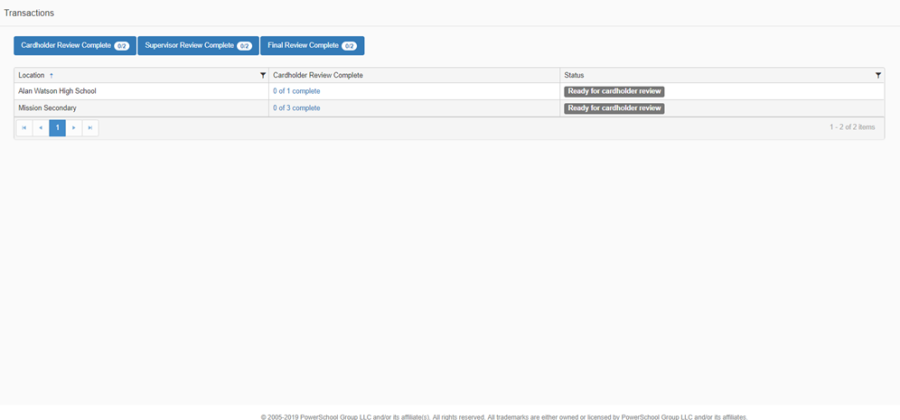
Included on this page are three completion indicators to give the logged in user a quick view of what has been completed. All completion indicator counts are based on locations not individual cardholders.
Quick status indicators:
-
Cardholder Review Complete – the count will be updated once all cardholders at a location have completed their review, for example: at Location ABC Elementary School there are 10 cardholders with transactions relating to the current uploaded statement, the count will be '0' until all 10 have completed their review and submitted for Supervisor Review, and then the count will be incremented by '1'
-
Supervisor Review Complete – the count will be updated once all supervisors at a location have completed their review, for example: at Location ABC Elementary School there are 10 cardholders with transactions relating to the current uploaded statement, the count will be '0' until all 10 have been reviewed by their supervisor and submitted for Final Review, and then the count will be incremented by '1'
-
Final Review Complete – the count will be updated once the final review for a location has been completed, for example: at Location ABC Elementary School there are 10 cardholders with transactions relating to the current uploaded statement, the count will be '0' until all 10 have been reviewed by the final reviewer and the status is set to Ready for Invoicing, and then the count will be incremented by '1'
As with other version of the Transactions page, users with access to the District Transactions page will be able to expand the grid to show the transaction summary for each employee (by clicking on the arrowhead before each name), and the user can further drill into the details by clicking on the employee name.
All columns in the grid can be further filtered by clicking the filter icon 
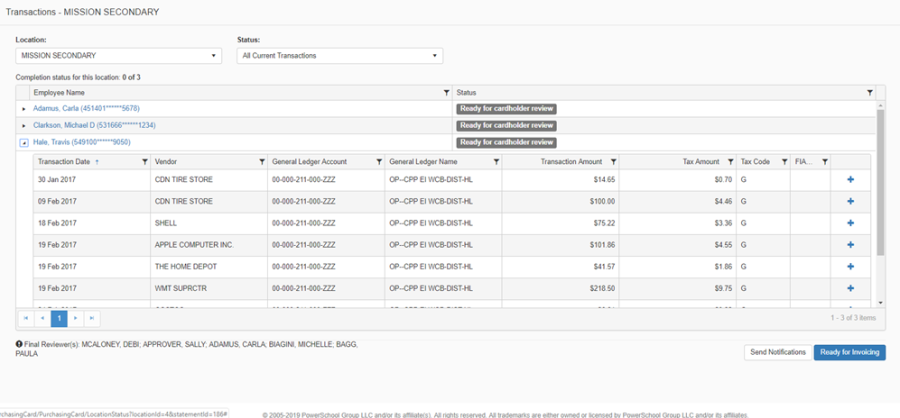
A user with access to this page may or may not also have subordinates; the button 'Review My Subordinates' will only display if the logged in user is also a Supervisor.
A user with access to this page may or may not also have the Final Review permission; the button 'Ready for Invoicing' will only display if the logged in user is also a Final Reviewer.
Clicking on the 'Ready for Invoicing' button on this page will set the status for all employees at this location, overriding the existing status, so even if a card holder or supervisor had not yet completed their review the record would be marked as Ready for Invoicing. If you only want to set the status for specific employees then you must click on the employee name first and then on the Transaction Summary page for that employee, click Ready for Invoicing.
Send Notifications: clicking on the Send Notifications button on this page will only send notifications to cardholders that have not completed their review at the selected location.
All columns in the grid can be further filtered by clicking the filter icon 