
Step 1: Create a Journal Entry Interface Profile
-
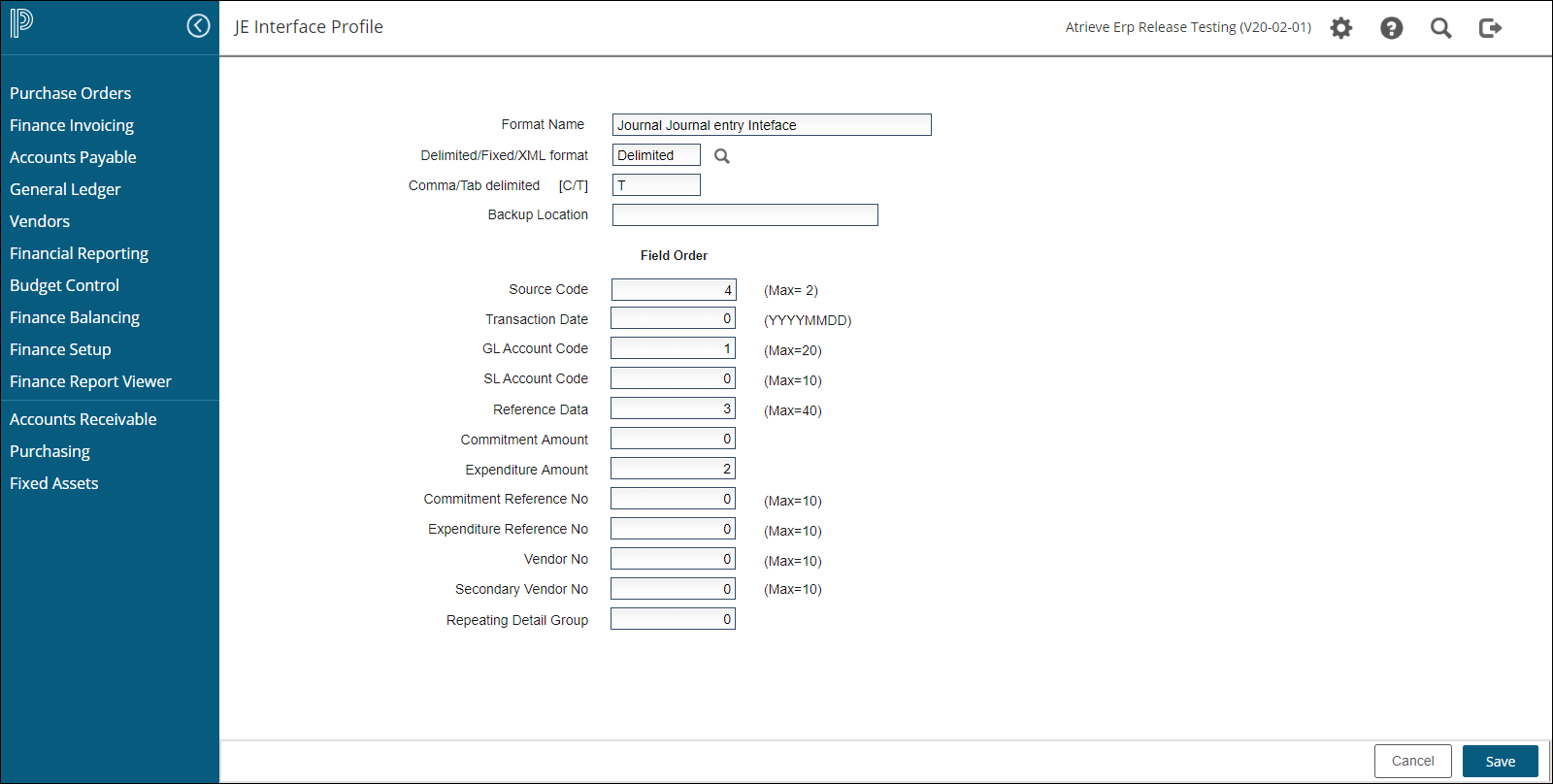
Navigate to: Set up and Maintenance > Interface Set up Menu > Journal Entry Additions.
Set up the following fields:
-
Format Name: Provide a descriptive name for the profile (e.g., "Invoice Import").
-
Delimited/Fixed Format [D/F]: Choose Delimited.
-
Select C for Comma-separated or T for Tab-separated.
-
-
Field Order: Match fields (e.g., GL Account, Description) to columns in your spreadsheet:
-
5= Column E,6= Column F, etc.
-
-
-
Define the following mandatory fields based on your needs:
-
GL Account Code: A valid code (max 20 characters) for the current general ledger year.
-
Reference Data: Add descriptive information (max 27 characters).
-
Commitment Amount: Enter amounts (positive or negative) without dollar signs or commas.
-
Expenditure Amount: Define the expenditure value using the same format as above.
-
Source Code: A 2-character code to identify the entry source.
-
Step 2: Prepare Your Spreadsheet
-
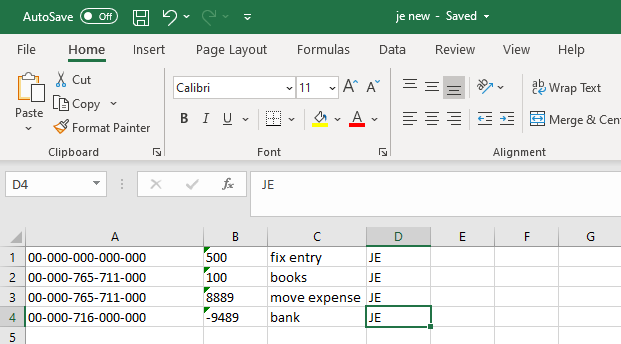
Set Up Required Columns:
-
Format the GL Account Code as text to avoid leading zeros being dropped.
-
Format the Expenditure Amount as a number field with two decimals. Avoid dollar signs and commas.
-
-
Clean the Data:
-
Remove headers, subtotals, and extra spaces.
-
Ensure all rows match the profile you created.
-
-
Save the File:
-
Save as Text (Tab-Delimited) or another compatible format.
-
Use a short, simple file name without special characters.
-
Step 3: Import the File
-
Navigate to: Balancing and Audit > Interfaces > Journal Entry Interface.
-
Upload the File:
-
Choose your profile.
-
Enter the accounting period for the journal entries.
-
Use File Upload to select and upload your spreadsheet.
-
Set File Name As Batch Default to N.
-
Choose a Batch Code Default (select from valid batch types).
-
-
Preliminary Run:
-
Always start with a preliminary run to check for errors.
-
Review reports and fix errors in your spreadsheet or profile.
-
Re-run until the process is error-free.
-
-
Final Run:
-
Once error-free, run the interface in final mode to complete the import.
-
Tips & Notes
-
Subledgers: If using subledgers, define them in your profile and include them in your spreadsheet without periods.
-
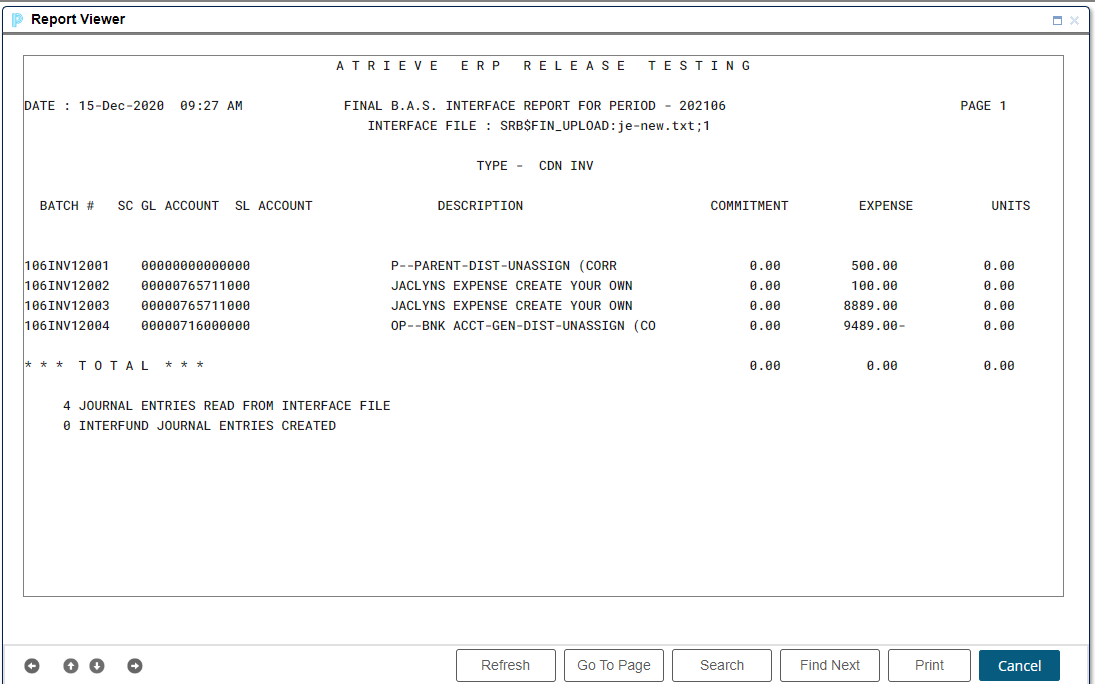
Error Reports: Use preliminary reports to identify issues. The system will guide you in resolving errors
Final Report
Journal Entry File
The Journal Entry File interface provides customers with the ability to load journal entries from external systems and to have a standard atrieveFinance program which will do all the normal checking done for any other type of entry made to the accounting system. This file can be a standard text file or a delimited interface file (created by a spreadsheet). The following format specifications must be completed to load payroll transactions from payroll system since this is the mechanism, we use to load the journal entries which are created by payroll to define the results of a payroll run.
Format Name
This descriptive field displays on the processing selection and profile maintenance screens so that you can identify various formats.
This process will support more than one interface profile for various journal entry interfaces. An interface from an Excel spreadsheet will normally be a delimited format.
Delimited/Fixed Format
Your interface will be in one of the following two formats:
Enter 'D' for a delimited format and indicate the delimiter (tab or comma).
Enter 'F' if the information is in a fixed format.
A Fixed format file is a file where the information can be extracted by specifying a start position and length of each field.
eg. 01010044112019970102107.00 7.00 CANADIAN TIRE
| GL account | date | amount | GST | Vendor name |
A Delimited format is a file where the information is separated by a delimiter (tab or comma).
eg. 010100441120,19970102,107.00,7.00,CANADIAN TIRE
This field will be different depending on whether the file is delimited or fixed.
Record Length
Enter the physical length of the record in the interface file. This length is used by the program to open the file and Must be the file's proper record length.
Backup Location
Enter the location of the directory where the interface files will be stored once processed. You can override this location by typing in another backup location. If you leave the backup location blank, the interface files will not be backed up.
Each field requires the entry of a start position and the length of field found in the external file to be interfaced to the system.
The 'MAX' field shows the maximum length of field used by the TSC system.
Start Position
Enter the start position in the interface input file where the field data begins. The first position in the file is '001'.
Length
Enter the length of the field in your interface input file (cannot exceed maximum length indicated).
Source Code
This is the 2-character code that identifies the source of entries when displayed using the journal entry option of the GL inquiry. Your file should contain this code and it should identify the source of the transactions so those viewing the transactions will be able to identify their origin.
Transaction Date
This field is not used in the current implementation. The transaction date is loaded as the system date.
GL Account Code
This is the location of the GL account code which can be a maximum of 20 characters and must be valid in the current year of your general ledger.
SL Account Code
This is the sub-ledger account code and bucket number of posting to a sub-ledger account if you have implemented these in your accounting system. This must be a valid sub-ledger account code in the current year of your GL.
Reference Data
This is the descriptive information stored in the reference area on a journal entry. In normal invoice entry and PO entry, this is the vendor name. In journal entries, it is whatever description has been entered by the data entry operator. You may have whatever descriptive information you want to a maximum of 27 characters.
Commitment Amount
This is the location of any dollar amount that is to affect the commitment part of the GL account. The amount must be entered as a normal string and may contain decimals. Negative amounts must have the minus sign at the front of the number on the left side. It must not contain dollar signs or commas.
Expenditure Amount
This is the amount which is to affect the expenditure side of the general ledger account. The rules for entry are the same as the commitment field above.
Commitment Ref #
Enter the equivalent of a PO or document number which is to be referenced for purposes of documenting this commitment entry. To affect the commitment side of an account, this item must not be blank.
Expenditure Ref #
This is the equivalent of your invoice or document reference number which identifies the source of the expenditure. To affect the expenditure side of an account, this must not be left blank.
Vendor #
This is used as an option for the invoice interface and allows the program to match the journal entries to the proper vendor when the same invoice number appears more than once in the interface file. At this time, the start position and length should be 000.
Format Name
This is the descriptive field displayed on the processing selection and on profile maintenance screens so you can identify various formats.
This process will support more than one interface profile for various journal entry interfaces. An interface from an Excel spreadsheet will normally be a delimited format.
Delimited/Fixed Format
Your interface will be in one of the following two formats:
Enter 'D' for a delimited format and indicate the delimiter (tab or comma).
Enter 'F' for if the information is in a fixed format.
A Fixed format file is a file where the information can be extracted by specifying a start position and length of each field.
eg. 01010044112019970102107.00 7.00 CANADIAN TIRE
| GL account | date | amount | GST | Vendor name |
A Delimited format is a file where the information is separated by a delimiter (tab or comma).
eg. 010100441120,19970102,107.00,7.00,CANADIAN TIRE
This field will be different depending on whether the file is delimited or fixed.
Comma/Tab Delimited
Enter 'C' if the fields in the interface file are separated by commas.
Enter 'T' if the fields in the interface file are separated by tabs.
Field Order
These fields display if your file is in a delimited format. Identify the order of the fields in the bank file by using the numbers Ø-1Ø with Ø being the first item of data. The example above corresponds to a sample spreadsheet format.
Start Position - Length
These fields display if your interface file is in a fixed format. You must define the start position and length for each field in your interface file that corresponds to fields Ø5-14. The length cannot exceed the maximum length defined beside each field.