
Step 1: Create a Budget Interface Profile
-
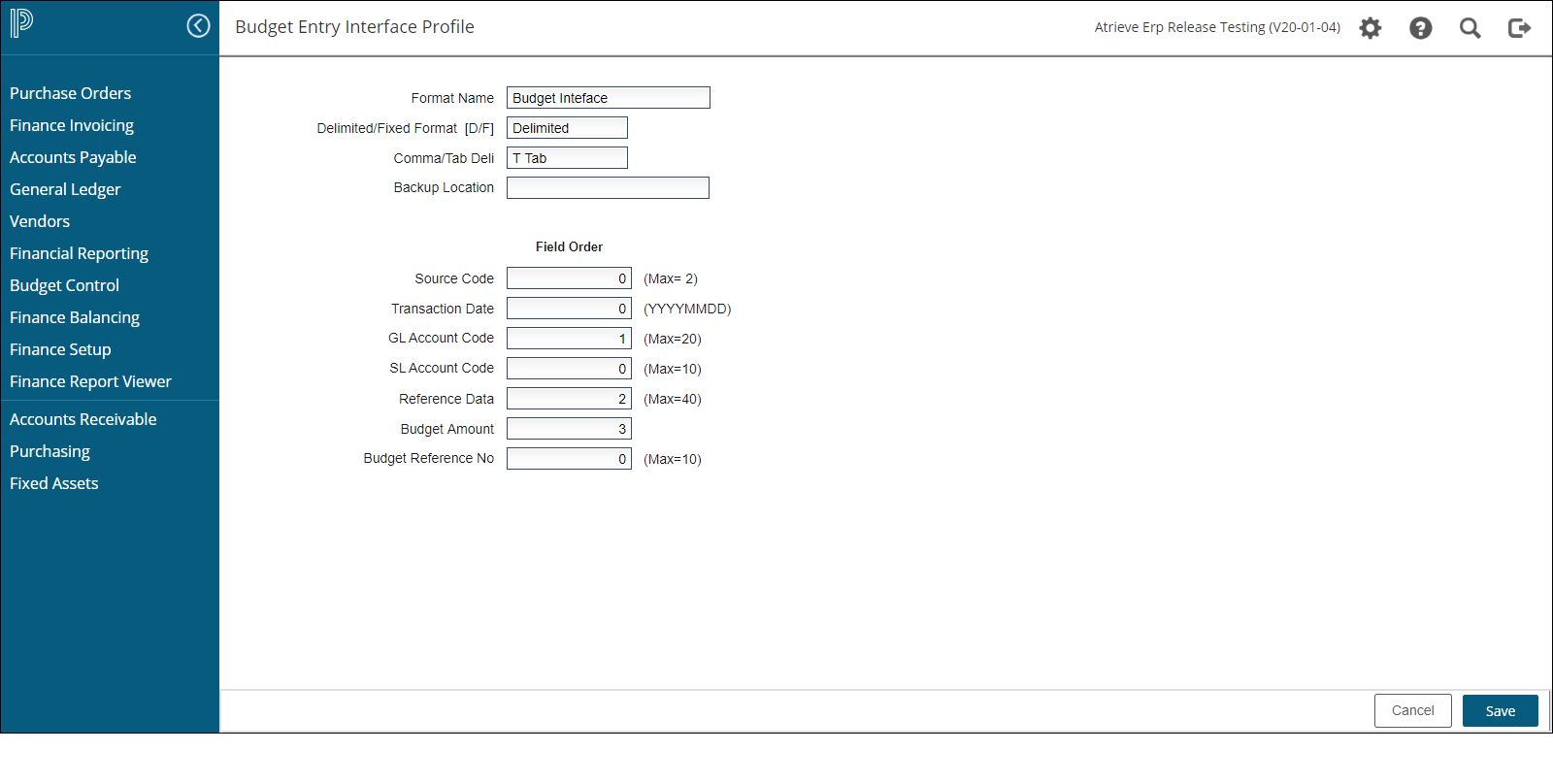
Navigate to: Finance Setup > Interface Setup Menu > Budget Entry > Add
-
Fill in the following fields:
-
Format Name: Provide a name to identify the format (e.g., "Budget Import").
-
Delimited/Fixed Format: Choose "Delimited." Select:
-
C for Comma-separated.
-
T for Tab-separated.
-
-
Source Code: Choose BU, BO, or BT. Leave it blank to auto-fill based on your selections during file import.
-
Transaction Date: Use (YYYYMMDD) format in your spreadsheet, or leave it blank to default to the file import date.
-
GL Account Code: Enter the location of the code (max 20 characters). Must be valid in the current general ledger year.
-
Reference Data: Add a description (max 27 characters) if included in the file. If entered during import, it will override this field.
-
Budget Amount: Enter the dollar amount without dollar signs or commas. Negative values should use a minus sign (e.g., -500.00).
-
Step 2: Prepare Your Budget Spreadsheet
-
Export Your File: If using external budget software, such as My Budget. Otherwise, create your own file in excel.
Clean the Data:
-
Remove headers, subtotals, and extra spaces.
-
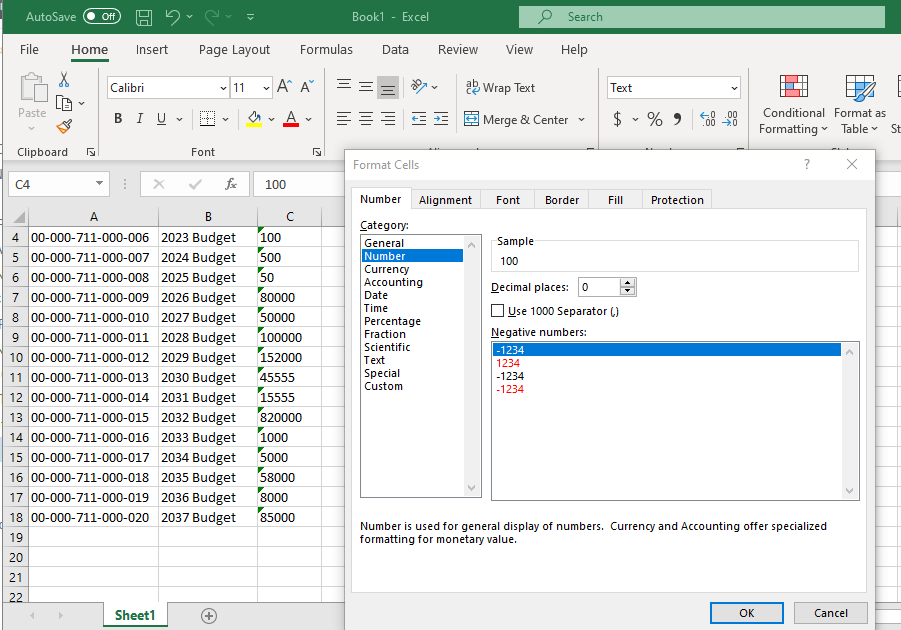
Format budget amounts as numbers (no dollar signs, commas, or decimals):
-
Right-click Column C > Select Format Cells > Choose Number (0 Decimal Places).
-
Save File:
-
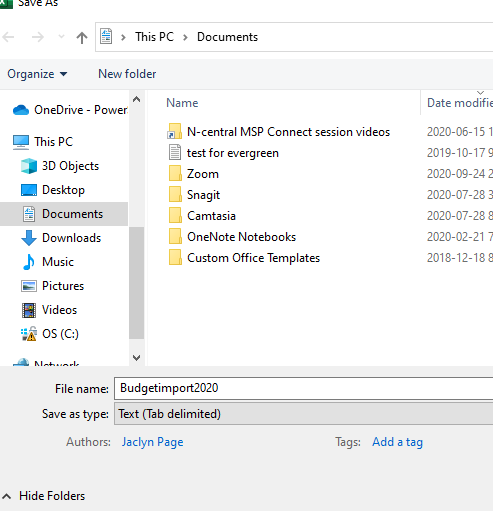
Use a simple file name like
budgetfileYYYY. -
Save as Text (Tab-Delimited) or CSV, based on your profile setup.
Step 3: Import the Budget File
-
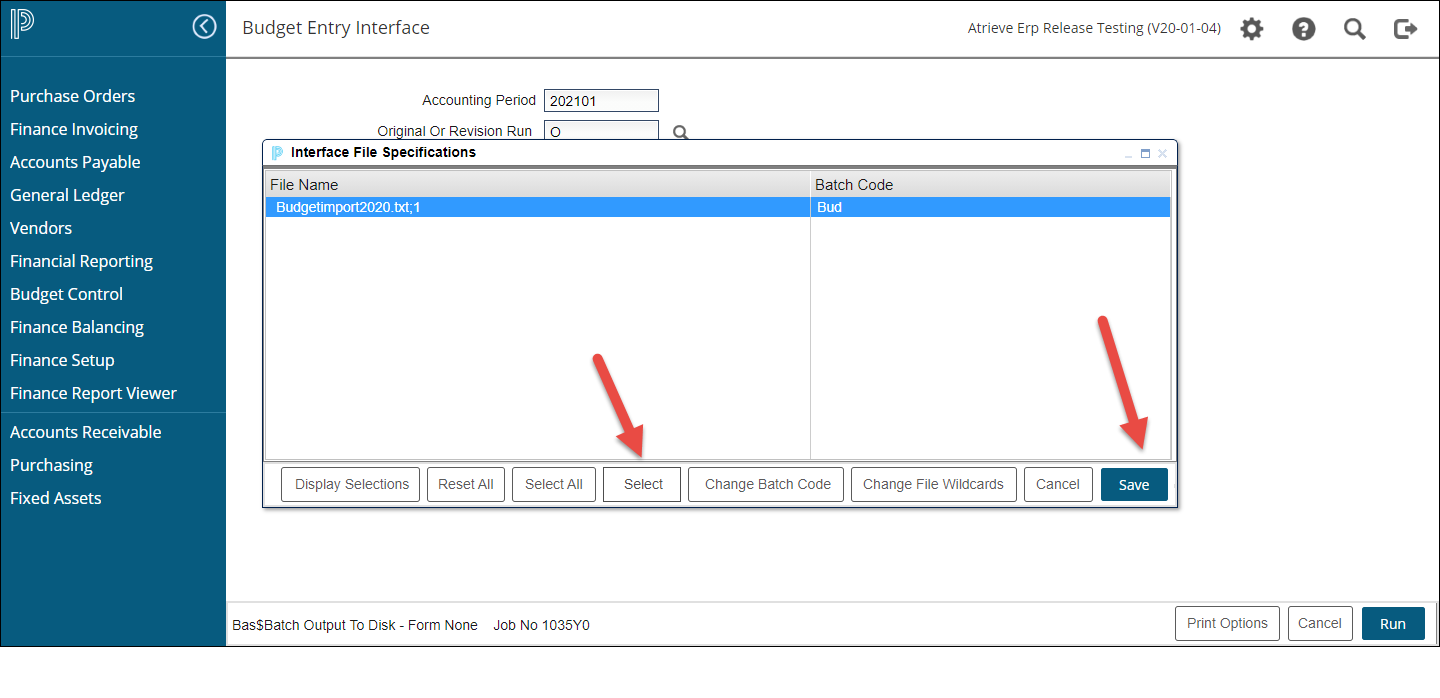
Navigate to: Finance Balancing > Interfaces > Budget Entry Interface.
-
Follow screen prompts:
-
Choose Your Profile: Select the one you created.
-
Posting Period: Enter the period to post to.
-
Original or Revision Run:
-
Enter O for original budget or R for revised budget.
-
-
Replace/Adjust Existing Budgets:
-
Enter R to replace existing budgets.
-
Enter A to adjust existing budgets.
-
-
Batch Code Default: Use valid batch types for budget entry (e.g., BUD, BUE).
-
File Location: Upload the file from your computer.
-
-
Preliminary Run:
-
Always run as Preliminary first to check for errors.
-
Review the report. Fix errors and re-run until no issues remain.
-
Use the Finance Report Viewer to view the error log (if needed).
-
-
Final Run: Once errors are resolved, run as Final to post the budget.
I
Tips & Best Practices
-
Always check for invalid GL codes; these will post to the system clearing account.
-
If you in preliminary and open the file in excel you will see any errors on each line.