
The Accounts Payable Register Selection PROGRAM selects unpaid invoices that are not already attached to a payment authorization batch number from the invoice file and groups them together under an authorization number, holding them for payment. These invoices become part of this authorization number for payment. An AP Register cannot be run more than once for the same group of invoices. The authorization number is internally generated by the system and increases by one each time the program is run. This prevents an invoice from appearing on more than one register and perhaps being paid twice.
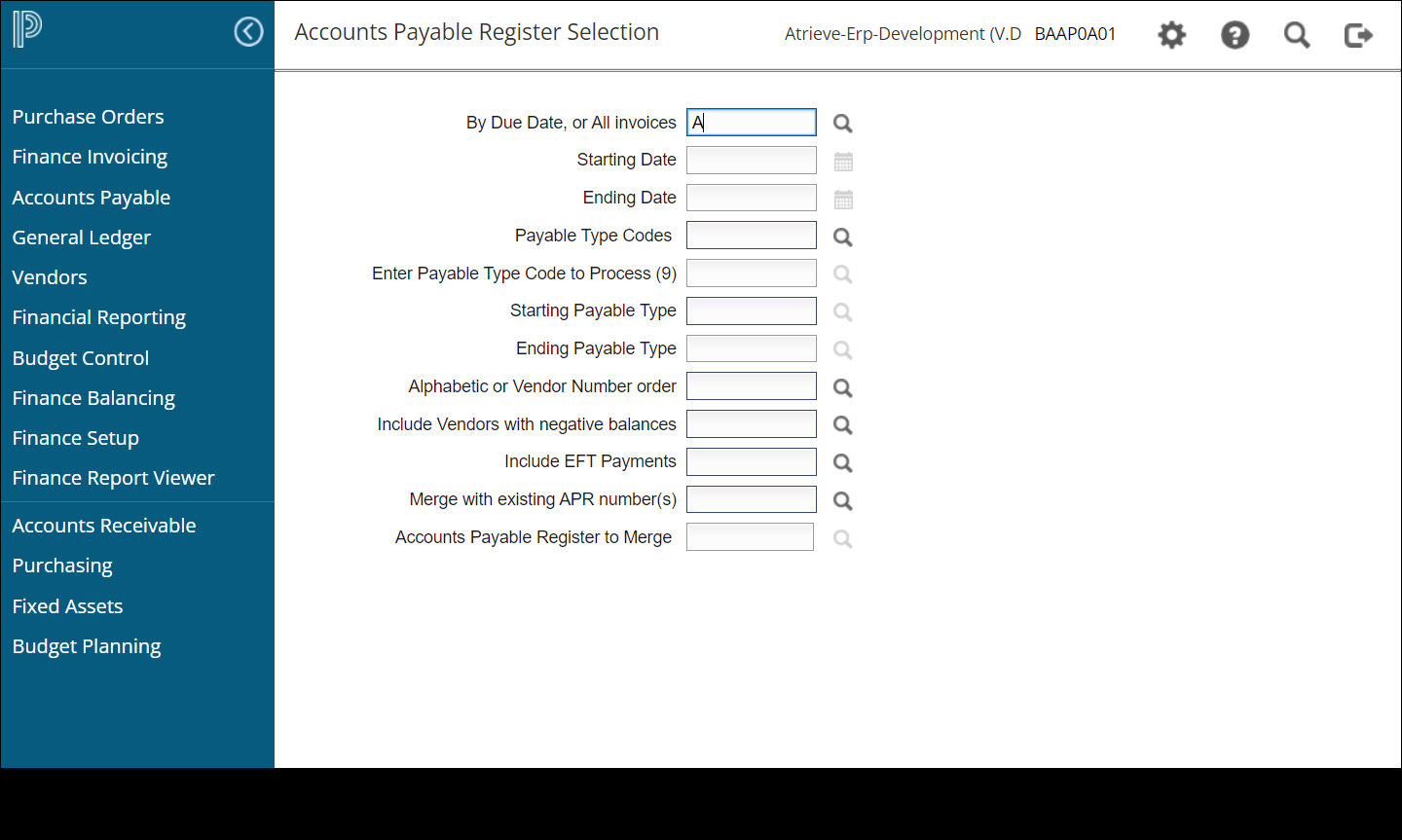
The AP Register will list any entry that would normally be selected according to the selection criteria. Invoices in a batch that is not finalized will not be included on the register. These invoices will be listed in the log to warn the customer that these items will not be paid if the current authorization batch is taken through to Final Cheque Register.
Changes can be made to an APR register without the register having to be rerun. (Accounts Payable Changes).The changes that have been made will be reflected on the preliminary cheque register.
The invoices listed on this report for payment can be separated into four categories for payment. If none of these categories are activated, all invoices will show up under the title 'Regular accounts payable invoices'.
Invoices With Attachments
To activate this feature, you must access those vendors who have attachments and change Page 3 (Additional Documents Required) [Y/N]) on the vendor file to 'Y' or flag vendors using the APR changes program. If you flag a vendor as having attachments in the vendor file, they will come up on all future cheque runs as requiring attachments.
Invoices over a specific dollar amount
All cheques requiring extra attention or a third party signature due to the dollar amount can be listed in a separate group on the cheque run. The dollar amount limit is setup in the user profile Page 3 (Over-limit Cheque Amount). If the limit is not setup, this category will not appear on the APR register.
Regular accounts Payable invoices
Invoices that do not reside in any other category will be listed for payment here.
Invoices to be paid by Electronic Funds Transfer
All invoices to be paid by electronic funds transfer will appear under this category. To pay an invoice by EFT, the vendor file must have EFT activated and the appropriate EFT information completed. The user profile must also have Page 3 Field Use EFT in Accounts Payable activated with a 'Y'.
Note: It is wise to run the AP Register Selection process in batch and print the log created. The log file will list all invoices not included on the register.
Print the AP Register to get the authorization batch number used by the system. It is included in the heading of the report. It can also be found by doing an APR Status Inquiry or an inquiry against an invoice that you know would be selected in register run. The authorization number will display on the inquiry screen.
BY DUE DATE OR ALL INVOICES
Enter 'D' to select unpaid invoices in balanced batches by the due date keyed in during invoice entry.
If 'D' is selected, the following prompts will appear
STARTING DATE [YYYYMMDD] <FIRST>
Enter the start DUE date to use when selecting invoices for payment. <ENTER> to take the default of the first date on file.
ENDING DATE [YYYYMMDD] <LAST>
Enter the ending DUE date to use when selecting invoices for payment. All invoices that have due dates between and including this start and end date will be selected.
Enter 'A' or <ENTER> to select all unpaid invoices that reside in balance batches.
Payable Type Codes [selected/range/all]
Enter 'S' to select individual type codes
Enter 'R' to select a range of type codes
Enter 'A' to select all type codes
If 'S' is selected, the following prompt will appear
ENTER PAYABLE TYPE CODES TO PROCESS
Enter the type codes one at a time. <CRTL F> displays valid type codes.
If 'R' is selected, the following prompt will appear
STARTING PAYABLE TYPE
Enter the starting payable type code you would like your selection to start from.
ENDING PAYABLE TYPE
Enter the ending payable type code you would like included in your selection. All type codes between and including the start and end code specified will be included on your Accounts Payable Register.
ALPHABETIC OR VENDOR NUMBER ORDER
Enter 'A' or <ENTER> to produce the register in vendor name order (alphabetically) within each group and bank.
Enter 'V' to produce the register in vendor number order within each group and bank.
INCLUDE VENDORS WITH NEGATIVE BALANCES [Y/N]
Enter 'Y' if vendors with negative balances are to be included in this run. NOTE: Vendors with negative balances are automatically excluded on the preliminary and final cheque runs.
Enter 'N' or <ENTER> if vendors with negative balances are to be excluded from this register. A report will be produced at the end of the register listing all vendors that were excluded. This report will help you manage the vendors with negative balances. It is recommended that vendors with negative balances be excluded to conserve paper as they will always be listed at the end of the report.
MERGE WITH EXISTING APR NUMBER(S) [Y/N]
Enter 'N' or <ENTER> to create a new register and assign a new APR number to the invoices selected.
Enter 'Y' to merge with other existing APR number(s). The following prompt appears:
ACCOUNTS PAYABLE REGISTER (1) TO MERGE [####] ____
Enter up to 10 APR numbers with which to merge. Press <CTRL F> for a list of APR numbers that have not been processed through a final cheque run. The APR numbers will be listed below this prompt as they are selected and the number in brackets above (1) will increment by one for every APR# that you select.
The system will not allow a merge with an APR # that has been completed. All invoices that are picked up on this run will be merged with the selected APR#'s and reported under a new APR # for payment.
NOTE: The APR number is a 4-digit number with the creation date as part of the control record. A message 'MERGED TO ####', appears in the APR status inquiry and the APR audit trail on the APR #'s that were merged with the date the merge took place.
CLICK RUN OR HIT ENTER TO BEGIN PROCESSING/CLICK CANCEL TO CANCEL
The <UP> and <DOWN> arrows can be used to make a change on one of the prompts if necessary.