
-
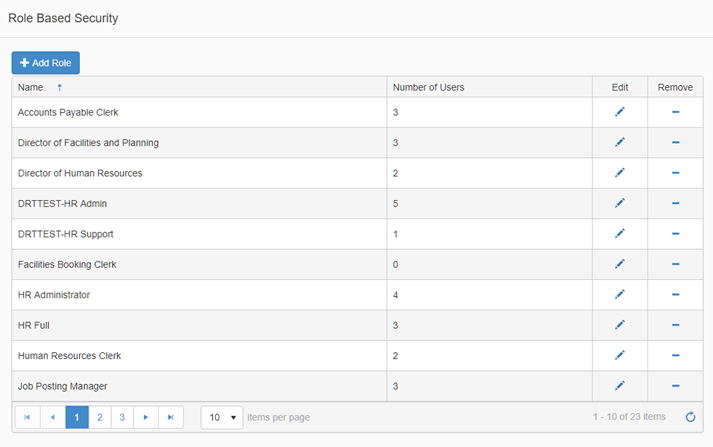
Navigate to Role Based Security, the Roles List page displays a listing of all roles that have been created within the district. Select an existing role to update or click Add Role to create a new role.
-
For the purpose of this document a new Role will be created.
-
Click Add Role, and a window will popup where you can add the role name (i.e. Workflow – Full Access)
-
Click Save
-
Click Close
-
Locate the new Role in the list and click the Edit pencil
On the Role page you may inherit permissions from existing roles, or you can simply add permissions. This example will show the Add Permission to a Role functionality. -
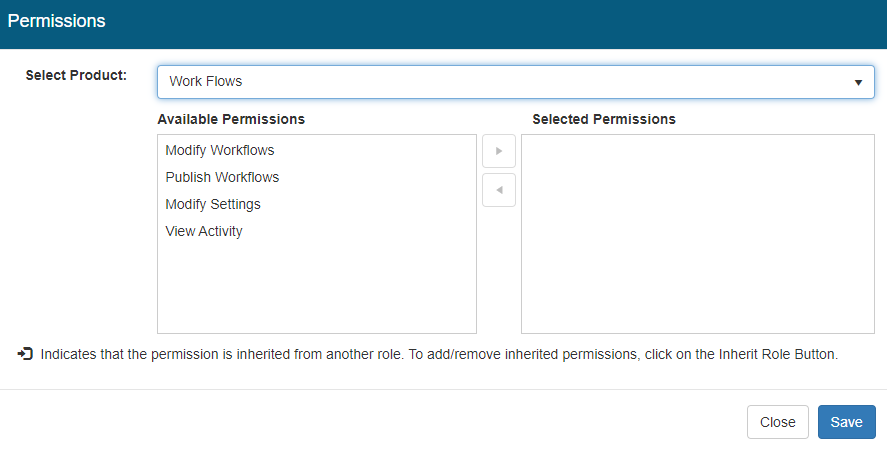
Click the Permissions button, and a window will popup where you can select the permissions to add to the role
-
Select Workflows from the product list, and the list of available permissions will display in the list mover
-
Ctrl+click to multi-select, or single click to select a permission and then click the right arrow
-
Once you are satisfied with your selection, click Save
-
Click Close
-
-
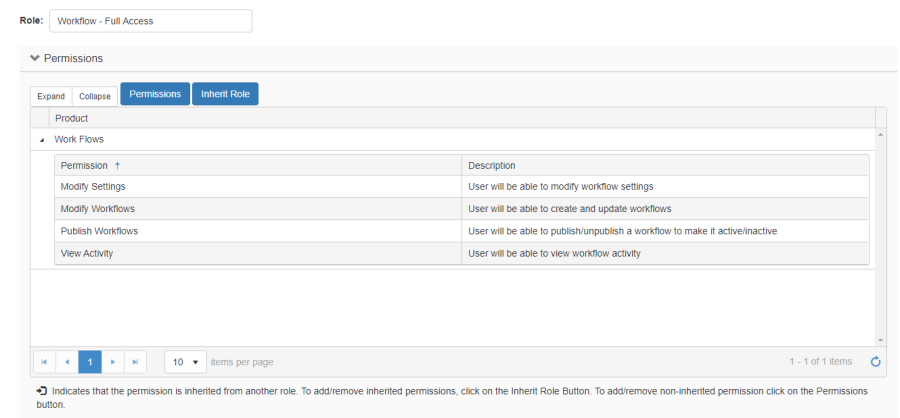
The Role will be updated to include the permissions selected for Workflows
-
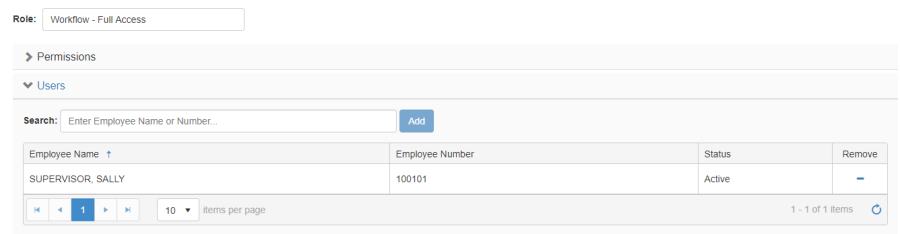
You can assign users to this Role by clicking on the Users section near the bottom of the page
-
Search for an employee, using the employee quick search
-
Click Add, and the employee will be added to the Role
-
Once the Role(s) and permissions have been created/updated and assigned to the appropriate users, you are ready to start using the new Workflows feature.