
To view a saved shopping cart, at any point in the browse process, select a saved cart from the drop-down list and it will become the current active shopping cart.

Until a shopping cart has been processed through "Checkout" or all items have been removed, it will be available in the drop-down list. To start a new shopping cart, simply start browsing a catalogue and selecting items. Until items are added, the cart will display as empty.
When browsing a catalogue, to view the contents of its shopping cart, click on the shopping cart icon at the top of the screen. The number of items selected (not their quantity) will appear beside it. This can be done at any time while browsing a catalogue.
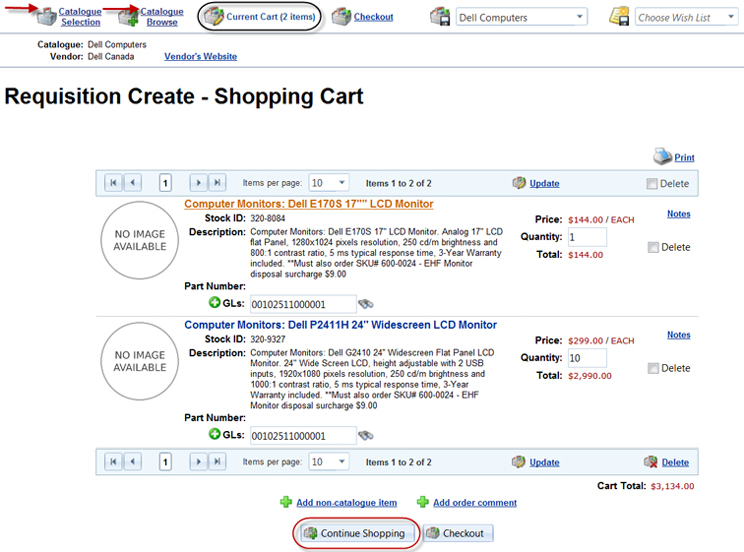
The item quantity can be modified, in this screen, by changing the quantity and choosing "Update" at either the top or bottom of the screen.
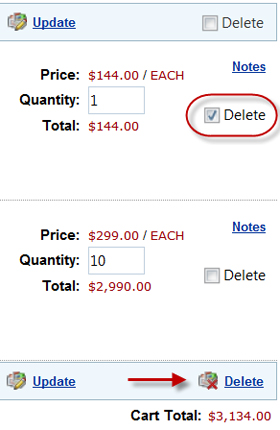
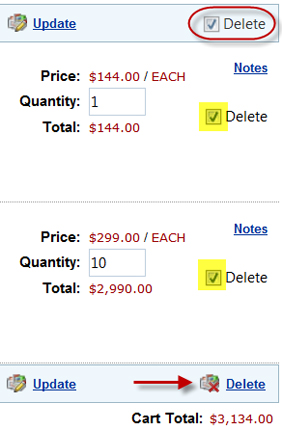
To delete an individual item, (A) select the checkbox beside the item and choose "Delete" at the bottom of the screen. To select all items on a page for deletion, (B) select the delete checkbox at the top and all items on that page become selected for deletion, then choose "Delete" at the bottom of the screen.
|
(A) |
|
|
(B) |
|
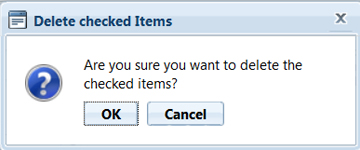
A confirmation box will appear for the deletion.
Shopping Carts can have multiple pages; use the cart header and footer scroll buttons to review the cart's contents. Page size can be adjusted to display 5, 10, 20, or 50 items per page.
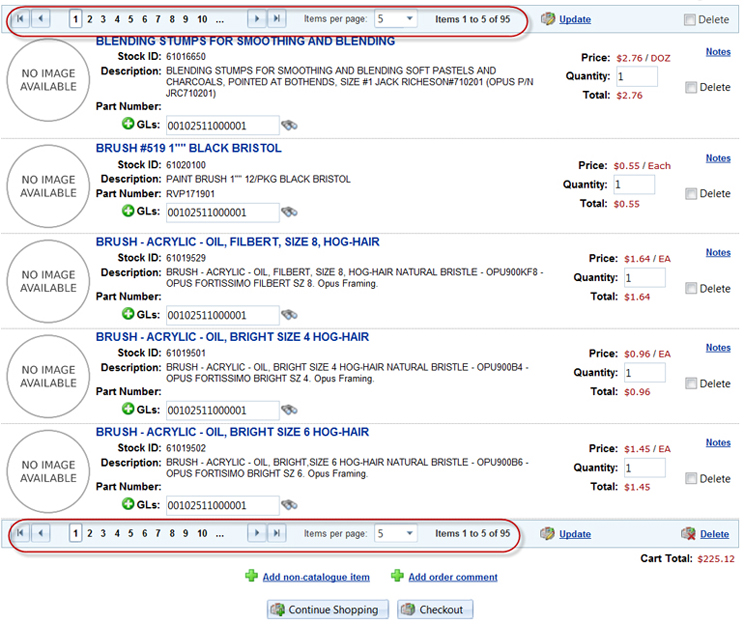
From the shopping cart screen, users can "Continue Shopping" or "Checkout" by selecting the option from the bottom of the screen.

To return to browsing, from a shopping cart, users can also click on the Catalogue Selection link or the Catalogue Browse link in the header of the page.