
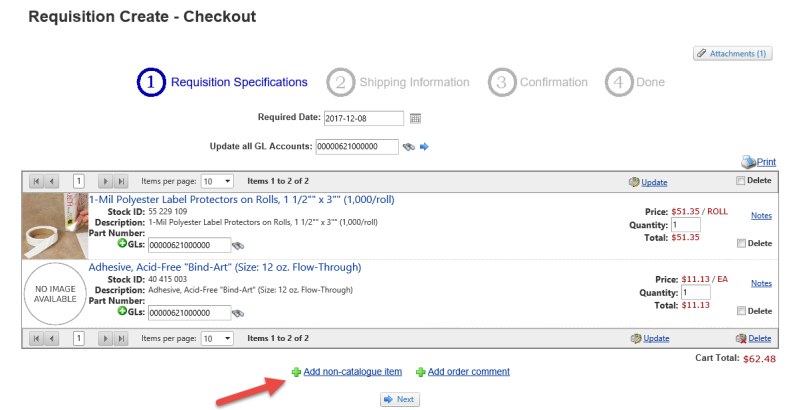
If any required items cannot be located in the catalogue, use the Add non-catalogue item button located at the bottom of the shopping cart.

Enter any item details that will assist the purchasing department in locating the item.

Notes: Use the Notes option to add a note to each catalogue or non-catalogue item. These notes can be reviewed by the approver and the purchasing department.
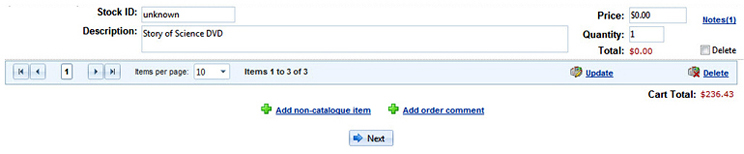
A (1) will appear beside the word Notes when a note has been added as Notes(1)
Order Comment
Use the Add Order Comment option to add a comment that will apply to the whole order.

Click on "Update" to save the item to the cart.

The total will update to reflect the quantity and price and ensure all notes and comments are saved.
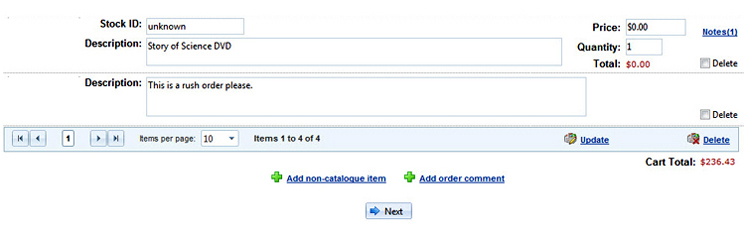
Click the "Next" button at the bottom of the shopping cart to proceed.