Depending on your specific routing configuration you have one level of approval or, new in the 18-01-01 Spring Release, multiple levels of approval .
When reviewing a submitted requisition, the system verifies if the logged in user is an additional approver, or the final approver and displays the appropriate version of the approval screen.
Approvals can be processed via four access points.
-
Email
When a requisition is submitted, an email is routed to an approver. The email contains a link to the approval screen.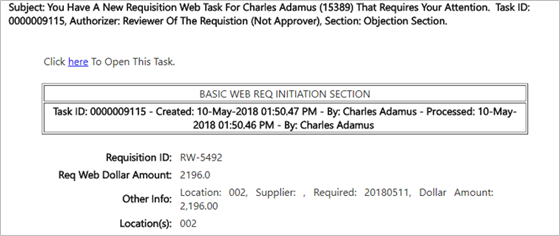
Approval Screen (Routing Authorizer, not Final Approver):
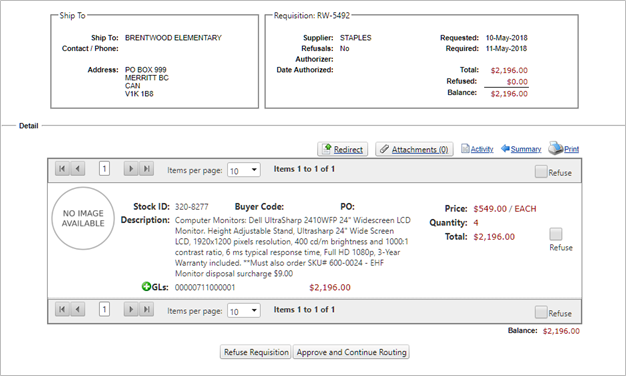
This user will have access to two action buttons:
-
Refuse Requisition – select this option to refuse the entire requisition and return back to the originator to make changes. Note that at this level the system does not support the refusal of individual lines. If one line is refused, the entire requisition is sent back for changes. The Refuser is required to enter comments indicating what line(s) are being refused and why.
-
Approve and Continue Routing – select this option to approve the requisition and send it to the next approver defined in the routing path.
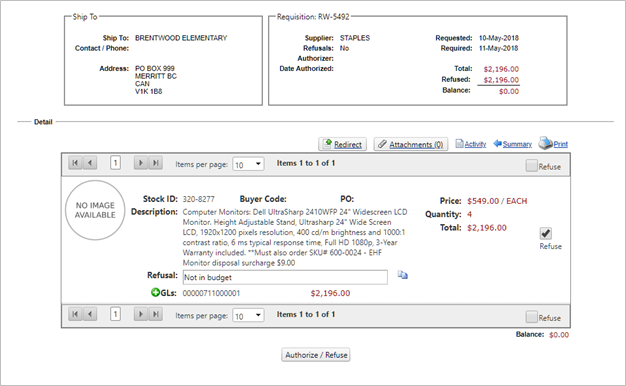
Approval Screen (Final Approver):
-
-
Task Manager
The Task Manager displays all system generated tasks that are waiting for approval. Click on the hyperlinked number in the top right hand corner to access the Task Manager or use the Task Manager option, if it has been defined as an available menu. The number indicates how many outstanding tasks exist for this employee/authorizer.
To access, review and approve requisition tasks, click on the hyperlink with the corresponding task ID. The Task Manager will also display the requisition number, type, status, routing authorization code, employee and summary information.
Clicking on the Task ID will open the approvals screen
Approval Screen (Routing Authorizer, not Final Approver):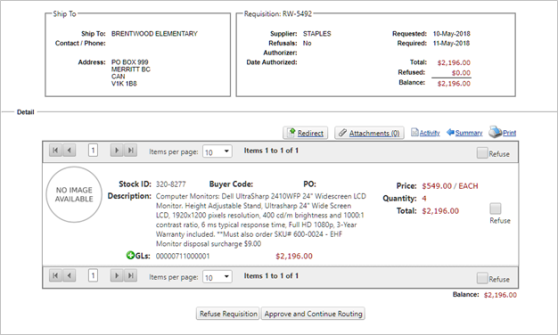
Approval Screen (Final Approver):
-
Requisition Search
Use the Requisition Search option, if it has been defined as an available menu option, to open a requisition history screen. Requisitions can be searched for by number, date ranges, location (linked to HR location) and status.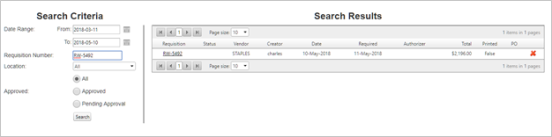
The Requisition Search has been modified to include three options in the Search Criteria to help quickly refine:
-
All – this is the default on entry into this page and will display all requisitions
-
Approved – selecting this option will filter the search results to only include those requisitions with a status of Approved
-
Pending Approval – selecting this option will filter the search results to only include those requisitions that do not yet have a status (i.e. have been submitted but have not been refused or approved) and those requisitions that have a status of Refused.
To delete an unauthorized requisition, click on the red X and confirm the deletion. The requisition can only be deleted if it has not yet been approved.
-
-
Purchasing System
Refer to the POM Manual for approvals via the Purchasing System.
Refused Requisitions:
When a requisition is refused the originator of the requisition will receive an email, notifying them that their requisition has been refused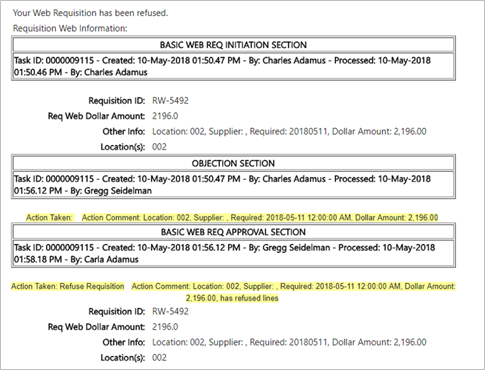
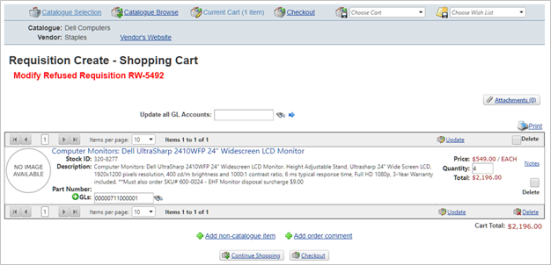
In Requisition Search the employee can search for the refused requisition, and when they select the requisition, the shopping cart will re-open.
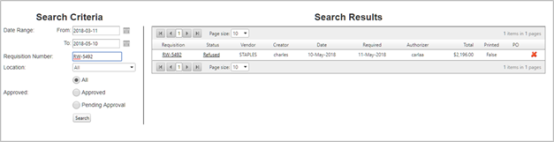
The Shopping Cart includes supplementary text that the Requisition had been refused and that it can be modified. The employee can make changes to the requisition and when satisfied can resubmit for approval, going through the standard process of checking out.