
Recurring Schedules allow you to enter a recurring Journal Entry that will be posted based on a predefined schedule, requiring no manual intervention, saving you time from having to create the entry from scratch each time you need it.
-
On the Journal Entry main page, click Add Recurring Schedule
-
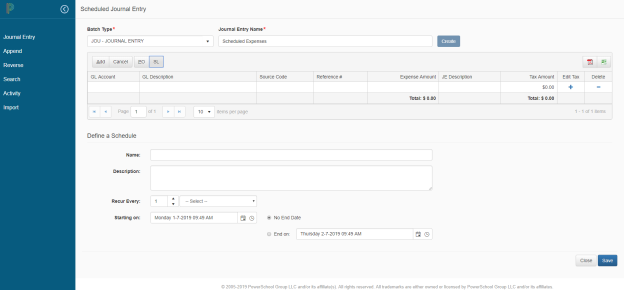
On the Scheduled Journal Entry page enter the Batch Type and the Journal Entry Name
-
Click Create
-
Enter the journal entries, and then define the schedule
-
Enter the name and description (optional), and then enter the recurrence type, for example, weekly, monthly or yearly
-
Based on the recurrence type selected, different options will display, where you can set a specific day or date, or day of the week and specific time of day. Note that for the end of the month, enter 31 and the system will process accordingly based on the actual days in the month
-
Enter the Start and End date (if applicable), or no End Date
-
Click Save to save the schedule
-
Click Close to return to the main Journal Entry page, and the new schedule will be listed in the schedule summary table
-
The system will automatically post the journal entry based on the defined schedule, and display the date that the entry was last posted
-
To remove a recurring schedule, click on the delete icon associated to the row

Once a scheduled recurring batch has been automatically posted the history table on the schedule detail page will be updated. To drill into the posted batch to review the details, click on the number hyperlink.

To view the video on creating templates and schedules click below