20.01 Spring Release comes with an enhanced Direct Print, please follow steps below to uninstall and re install the newest version of Direct Print.
Direct Print - Uninstall
-
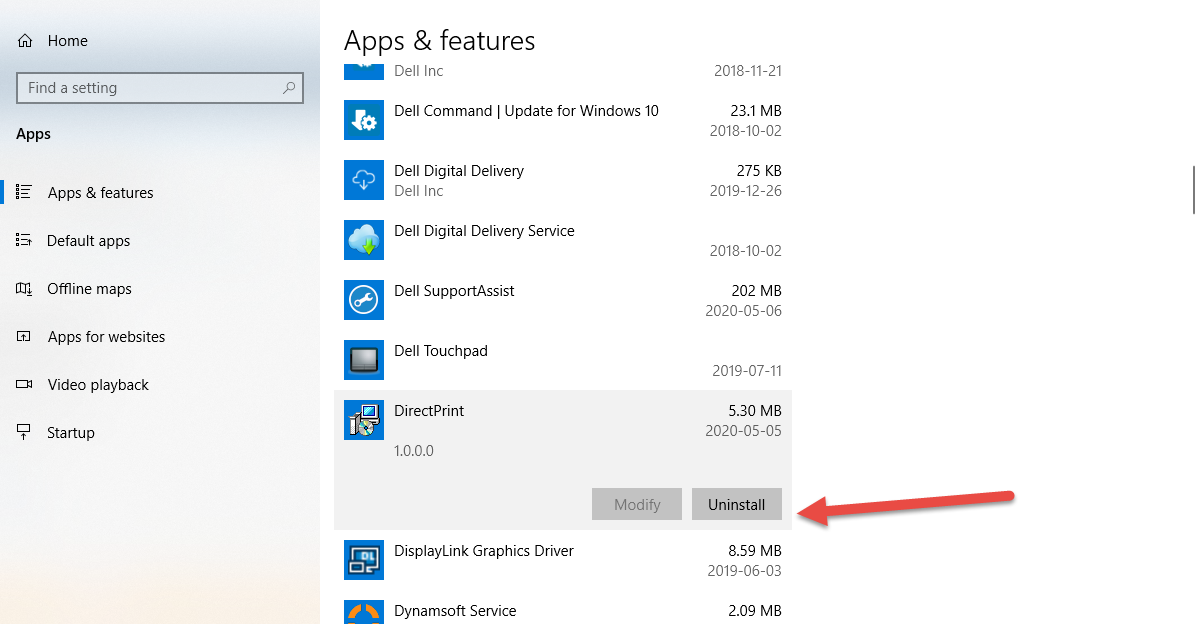
Uninstall Direct Print from programs Apps & Features
-
Clear Cache, Clearing Browser Cache
-
Restart your computer.
-
Re Install Direct print, see directions below
Direct Printing - Installation Process
-
User clicks "Print QRcode" from within an atrieve Web Invoice process.
-
Pop up to download Direct Print.
-
User clicks Download the DirectPrint.Installer.zip file is downloaded to the client computer.
-
Go to your downloads directory or where you downloaded the zip file and right click the zip file and select "Extract All..."
-
From the directory that you extracted you will see 2 files. One of them being DirectPrint.Installer.msi. Double Click the DirectPrint.Installer.msi and it will launch the installer.
-
Follow prompts to install.
-
Go back into atrieve Web click on "Print QRcode" from within invocie process.
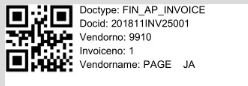
Quality of QR code should now be visibly clear.
New
Trouble shooting tips
To resolve the blow error.
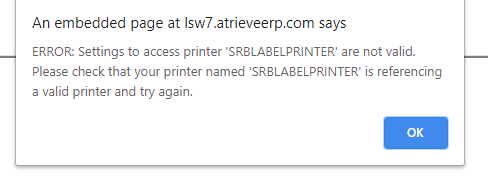
Go into your printers copy the printer name defined for printing QR/Bar-codes.
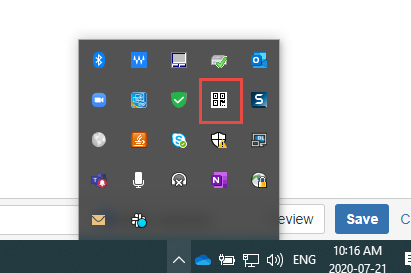
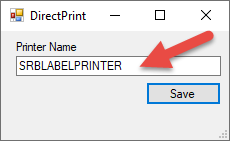
Go into your system tray right click on the QR code, click configuration and paste or type the correct printer name in the printer name field.
The configuration file must be a valid printer installed on your computer.