
GL Detail Screen - Overview
The GL Detail Screen displays the General Ledger accounts with total budget, commitments, expenditure and balance available at the bottom of the summary page. The GL Detail Screen can be sub-totaled on the various levels of the GL and sorted by column header. The user’s selection will be remembered for the next time the detail screen is accessed and will be displayed in the same format.
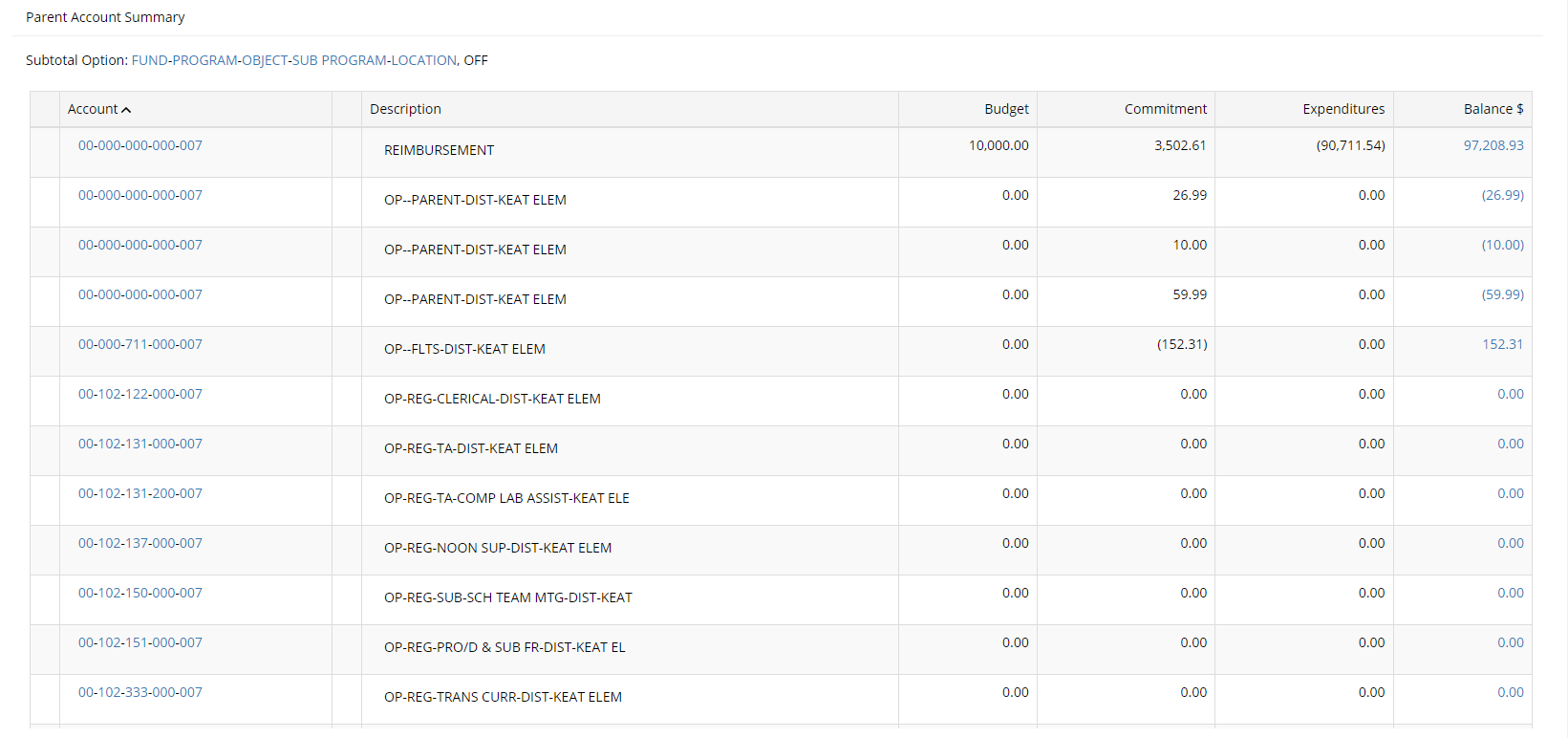
The user can click on each GL account to display a summary of that specific GL.
Also available for each GL is further drill down ability to see the budget transactions and expenditure breakdown by clicking on the Balance Available link
Sub-Totaling:
Depending on profile options set by the administrator, the level descriptions, or simply a placeholder for the level will be displayed on the sub-totaling line at the top of the GL Detail Screen. Each level description is a hyperlink that, if clicked, will sort and sub-total the details according to the level selected. Clicking on the “OFF” link will remove the sub-totaling and will display all applicable GLs.
When sub-totaled by level, the GL accounts under each of the sub-total headings can be displayed by clicking on the > to the left of the sub-total heading to toggle the detail display on and off.
Sorting:
Each column name at top of the account summary table is a hyperlink which, when selected, will sort the contents of the table in either ascending or descending order (click once for ascending order; click the same column header again for descending order)
Drill down capability:
On the example below, click your mouse on areas of the highlighted GL for more detail on how Budget Manager can drill deeper into your GL detail summary, all in a graphical format.
For this example, the GL database is set up in this format:
00 Fund - 000 Program - 000 Object - 000 Sub Program - 0007 Location
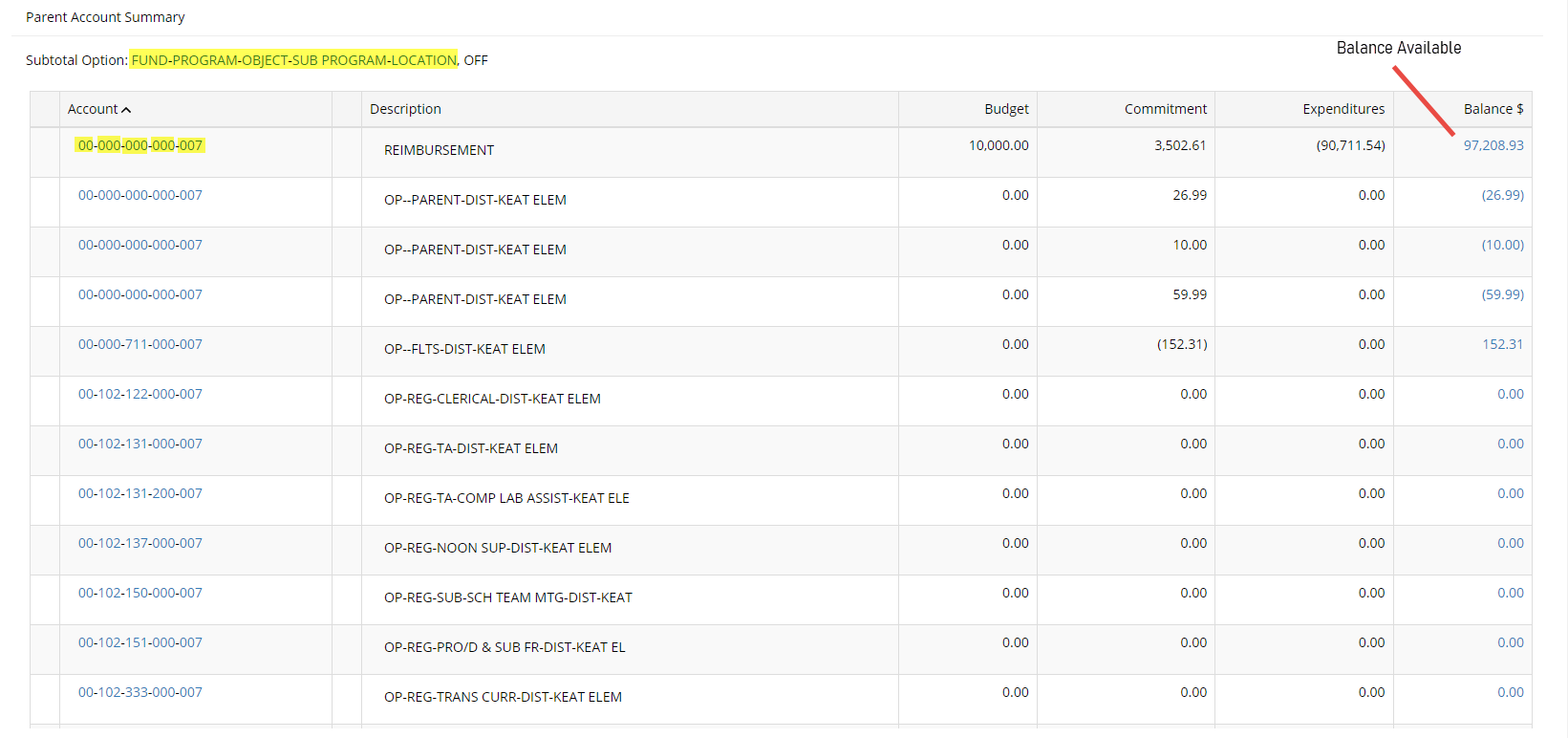
Balance Available Display:
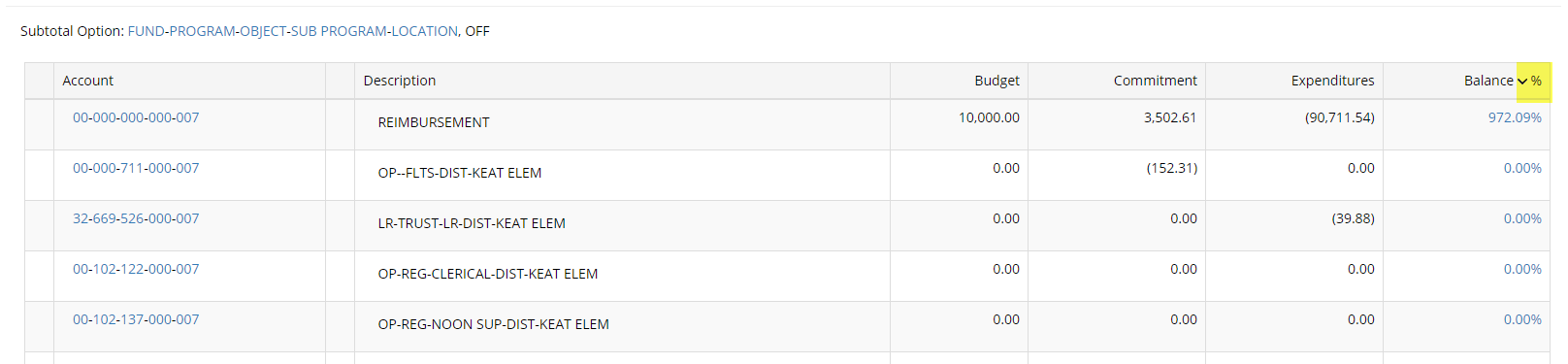
The balance available can be displayed in dollars available or by percentage available:
This screen shot represents the balance of budget dollars available.
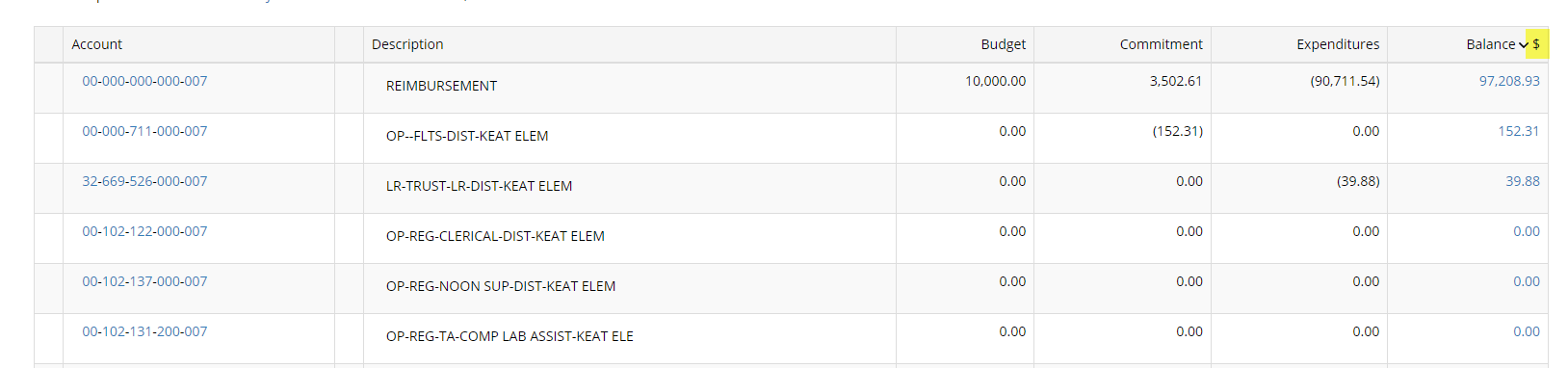
Click on the dollar sign to toggle the view and see the percentage of budget dollars available.
Quick Links:
Two quick links have been added to each screen to take you back to either the Home page for BMW (Budget Inquiry) or the detail screen for BMW (Budget Inquiry Detail).
Click on the Balance Available link to go the GL Detail screen for one account. From there you can access the Budget Summary Screen and the Expenditure or Journal Entry Detail screen for that account.
As shown in the pop-up examples, the user can drill deeper and deeper into the GL detail. Every underlined GL or financial amount can be clicked on for a deeper look at that GL or dollar amount.