Quick Guide
Staffing Notification List Page
Navigate to Payroll > Staffing Notification (New)
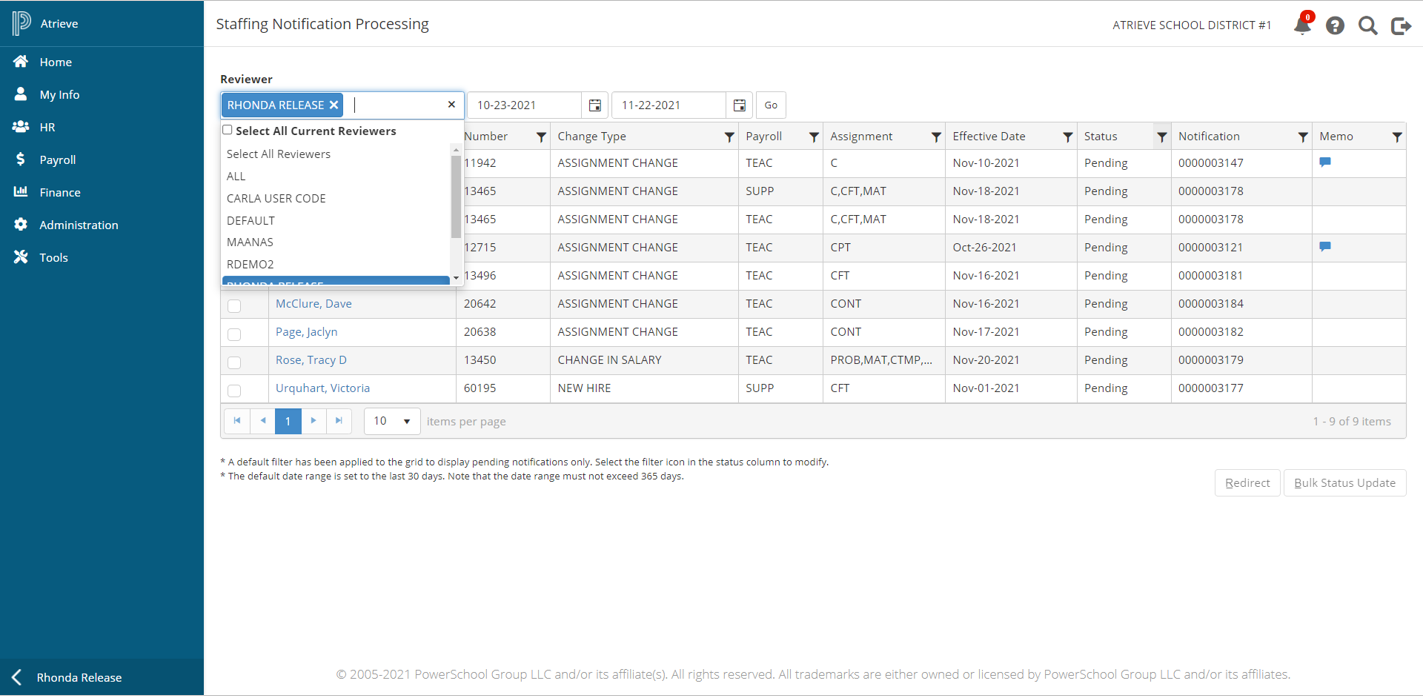
By default, the Staffing Notification Processing list page displays the pending transactions for the past 30 days for the logged in user. If the logged in user is not setup as a payroll notification reviewer, the grid will be blank, and you will need to select which reviewer's notifications to display.
The first time the page is accessed, it will take a few seconds to fetch records to put into the in-memory cache (time will vary depending on the volume of records). After the initial load, the program returns records from the in-memory cache, resulting in a quicker response to the user. As soon as the page reloads - either by hitting browser refresh or by simply navigating to the page, the data will be refreshed. Once working in SNPS, there is a configuration setting that will clear the cache after every five (5) minutes that have passed to fetch any new records.
Options include:
-
Select a single reviewer from the list
-
Select multiple reviewers from the list
-
Select All Current Reviewers
-
Select All Reviewers (this includes current and historical reviewers)
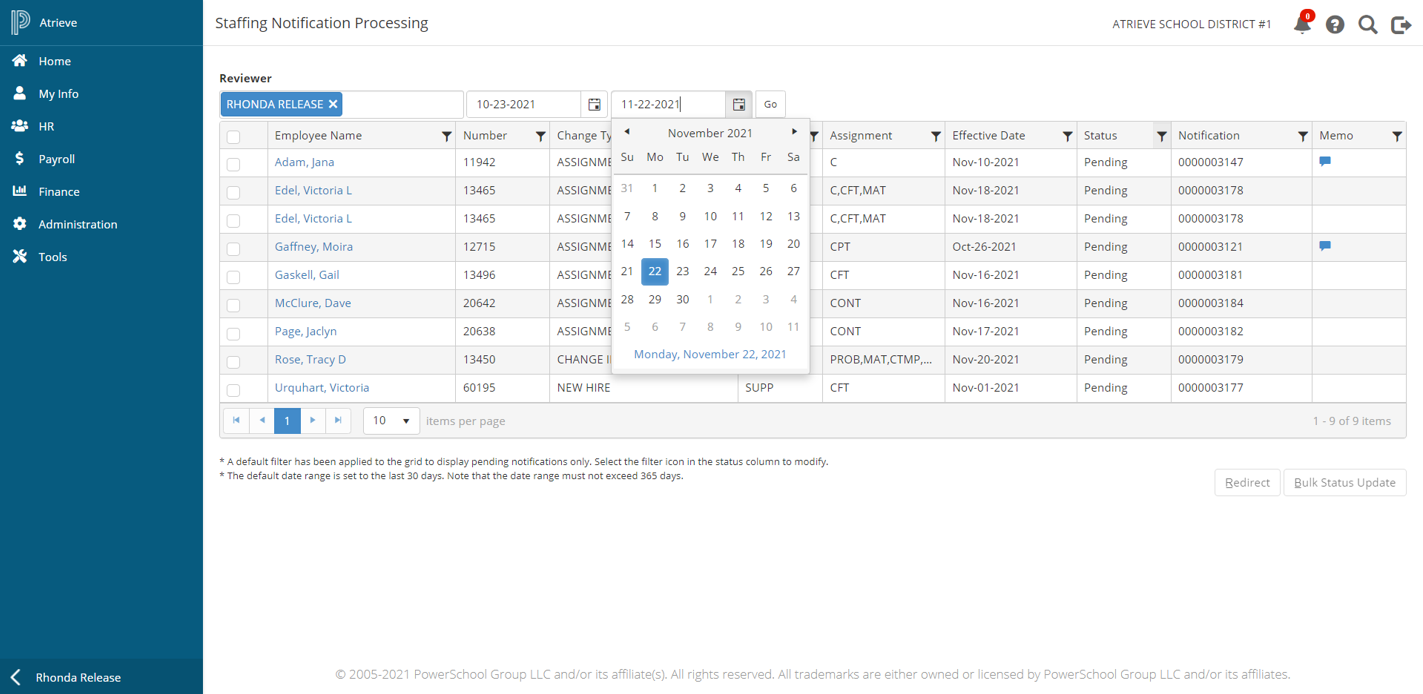
If the search results grid does not include the notification(s) that you are looking for you can change the results by modifying the date range, or by selecting one or more column filters and modifying the filter criteria.
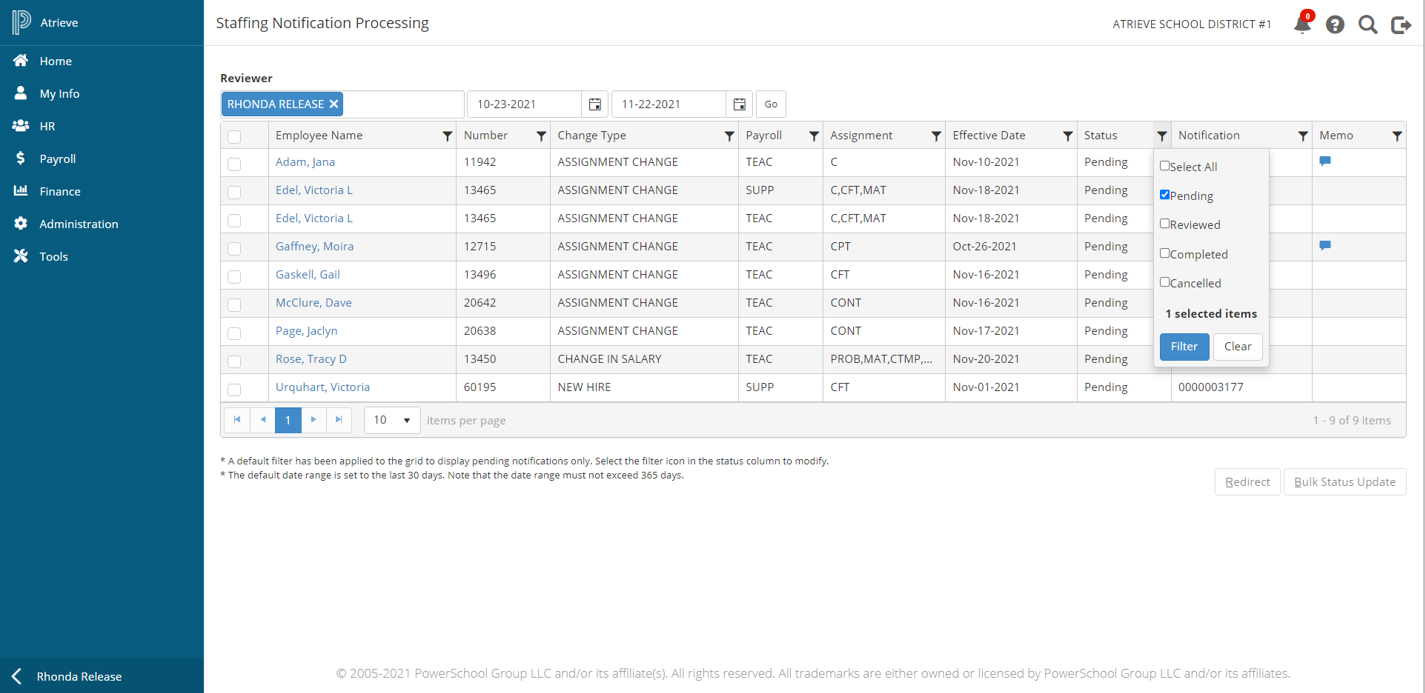
The date filter allows you to select any 365-day date range at one time and supports the ability to view future dated notifications. The column filters allow you to further filter the search results. In the example below the user can select All or specific statuses to display.
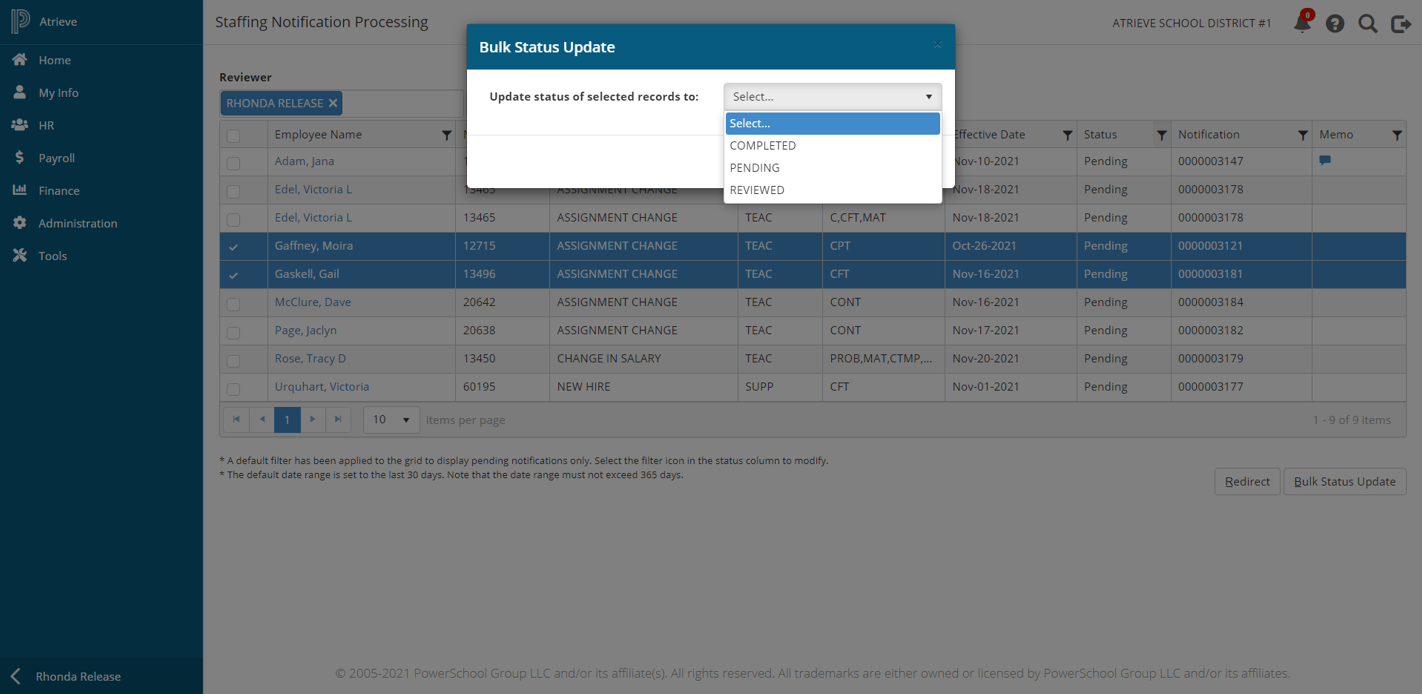
Bulk Status Update – you may select multiple notifications and mass update the status as follows:
-
In the left-most column select the checkbox next to the notifications to be updated
-
Click the Bulk Status Update button
-
When the popup window displays select the status to change to
-
Click Update
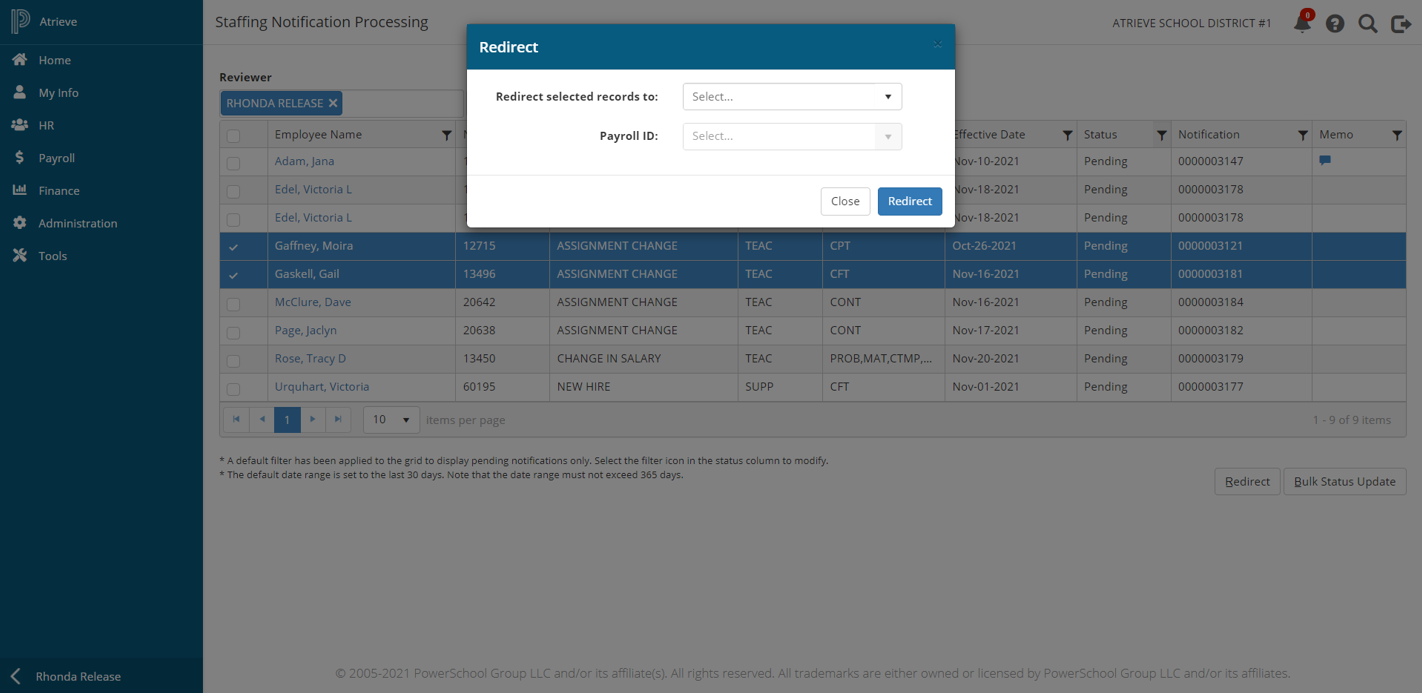
Redirect – you may redirect multiple notifications to an alternate reviewer as follows:
-
In the left-most column select the checkbox next to the notification(s) to be updated
-
Click the Redirect button
-
When the popup window displays, select the reviewer to redirect the notifications to
-
If only one record is selected to redirect, then you will have the option to change the payroll
-
If multiple records are selected to redirect, then you will not have the option to change the payroll – this is to safeguard you from accidently mass updating the payroll for multiple notifications in error.
-
-
Click Redirect
Additional Notes about the List page:
-
The Memo column includes an icon if a payroll memo exists. To view the memo from the list page, hover your mouse over the icon. You may also view the memo when you open a notification.
-
To change the number of rows that display before paging, you can change the items per page located in the grid footer.
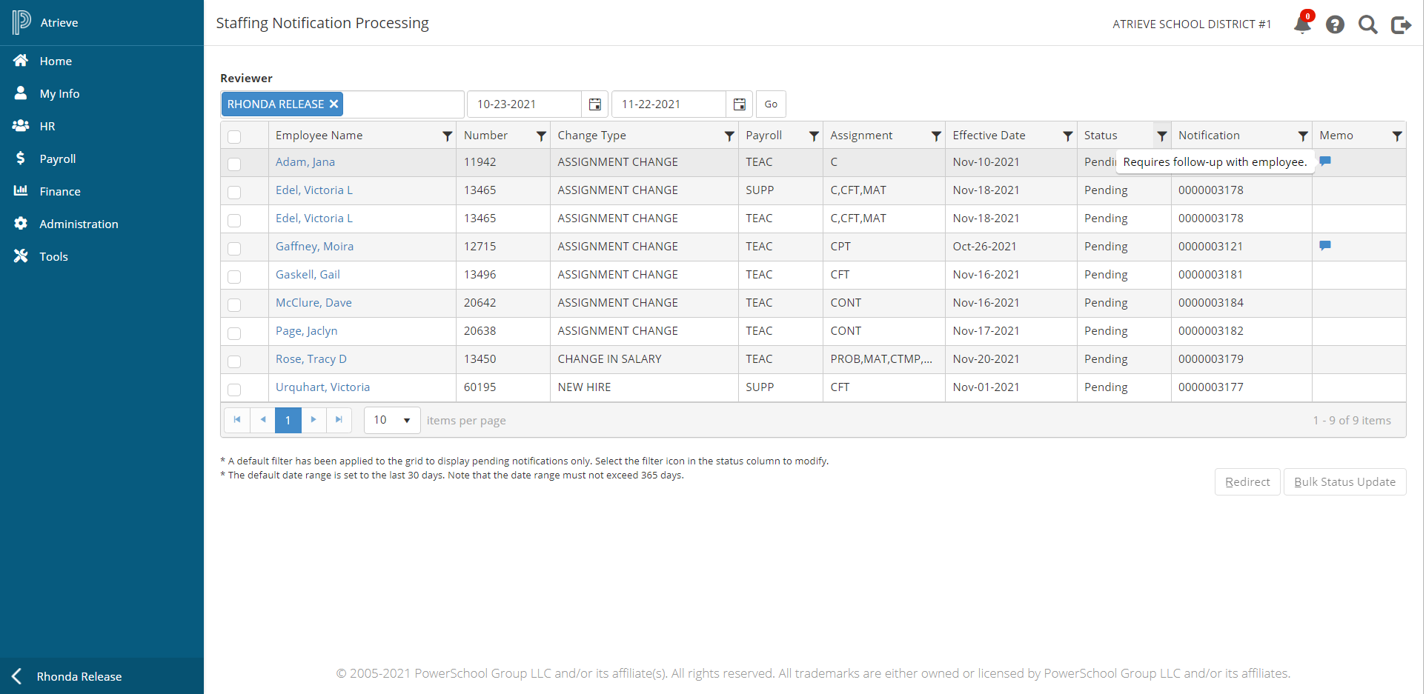
Click on the employee name hyperlink to open a notification record.
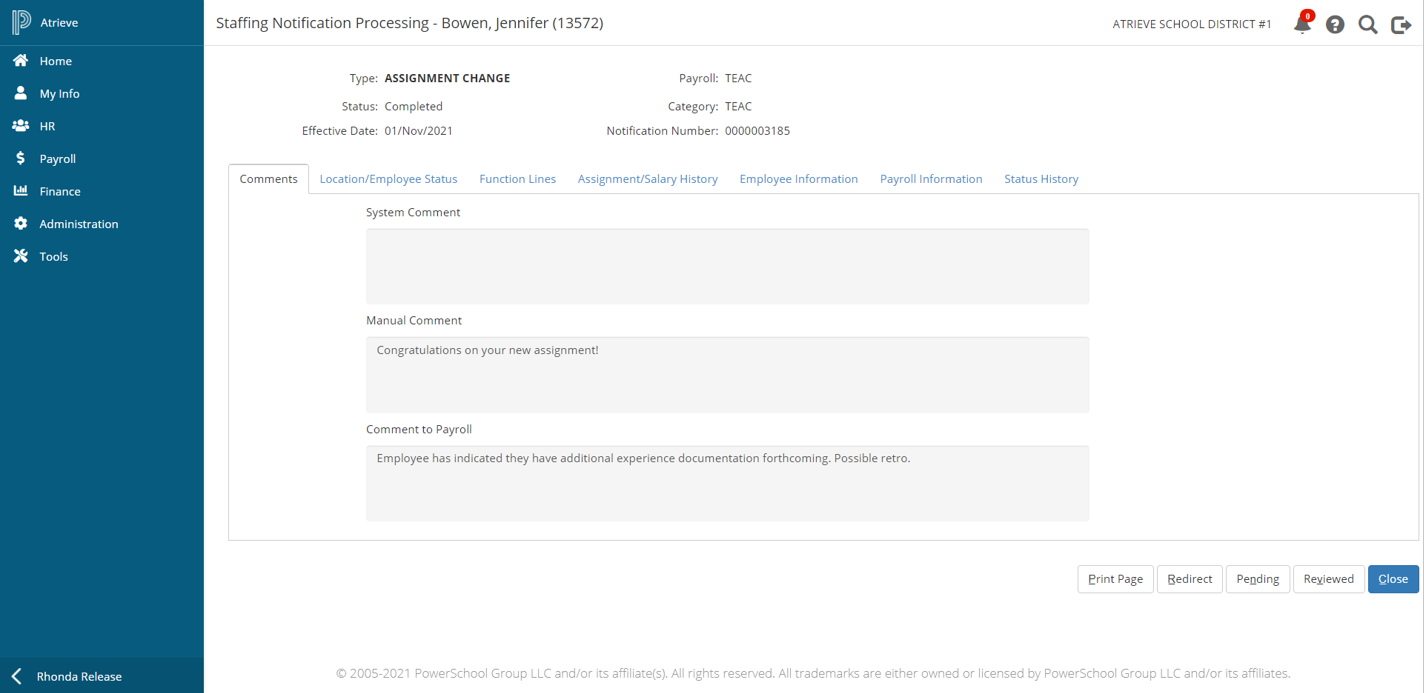
When the notification opens, the header information, including the Type, Status, Effective Date, Payroll, Category, and Notification Number, and the action buttons always display regardless of the tab page in focus.
Action Buttons:
-
Print Page – select this option to print the contents of the tab page in focus
-
Redirect – select this option to redirect the notification to another reviewer
-
Pending – select to change the notification status to Pending
-
Reviewed – select to change the notification status to Reviewed
-
Completed – select to change the notification status to Completed
The buttons that display is dependent on the current status of the notification i.e. if the current status is Pending then the available buttons are Reviewed and Completed. In addition the action buttons include shortcut keys; to activate click the Alt key and the underlined letter in the button label.
Comments Page
The first page to display is Comments, where you can see any comments as entered or selected by HR when the notification was created
Location and Employee Status
The Location and Employee Status page includes the ability to update an employees location and/or the employee status.
-
To change the Location, select the new location from the dropdown list and then click Save.
-
To change the Status, select the status code to change to:
-
Active
-
Terminated
-
On Leave
-
On Leave with Benefits
-
Return from Leave
-
-
Click Save
Changes are reflected immediately once saved.
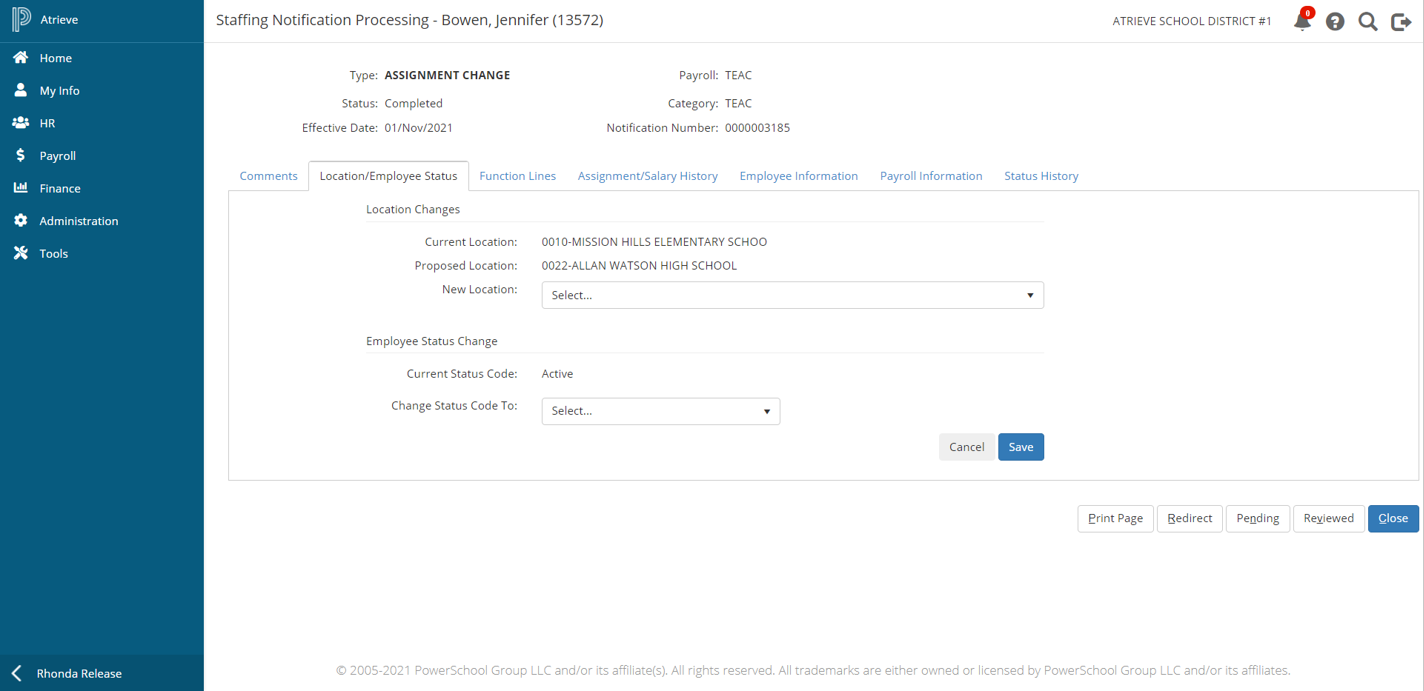
Function Lines
The page includes both the employees current function line(s) and the proposed function line(s) from HR.
In the proposed function line grid, the differences between the proposed and current function line(s) are denoted by a red triangle icon in the top left of any cells that are different.
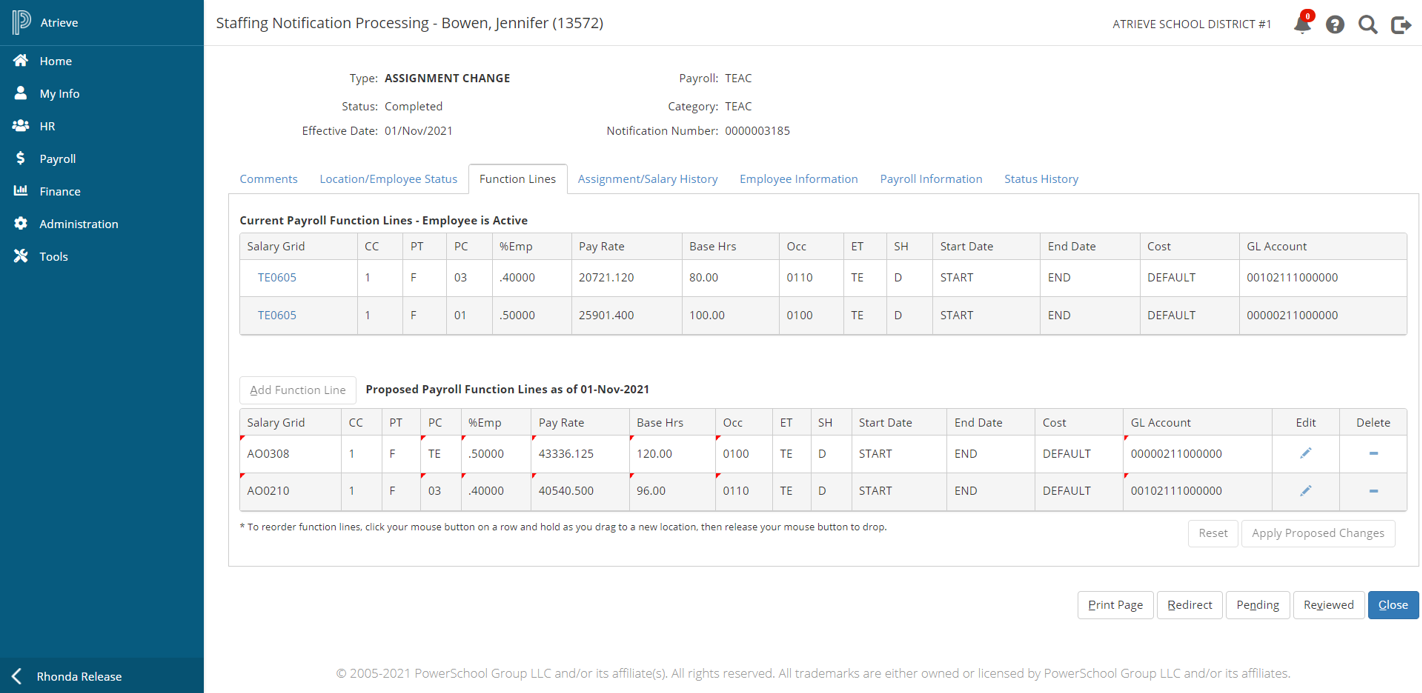
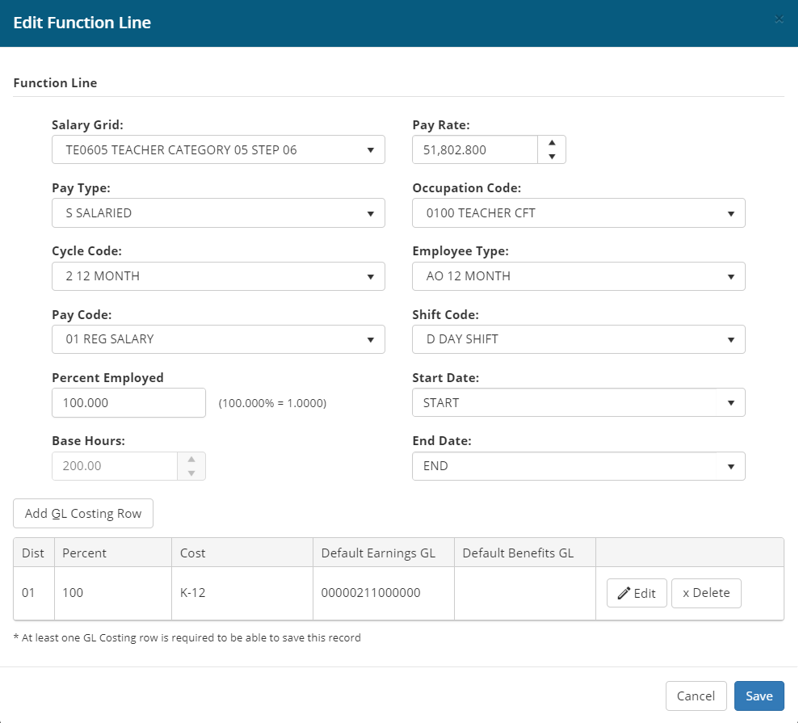
You may add, edit, or remove proposed function lines, and once you are satisfied, click Apply Proposed Changes and the Payroll system will be updated.
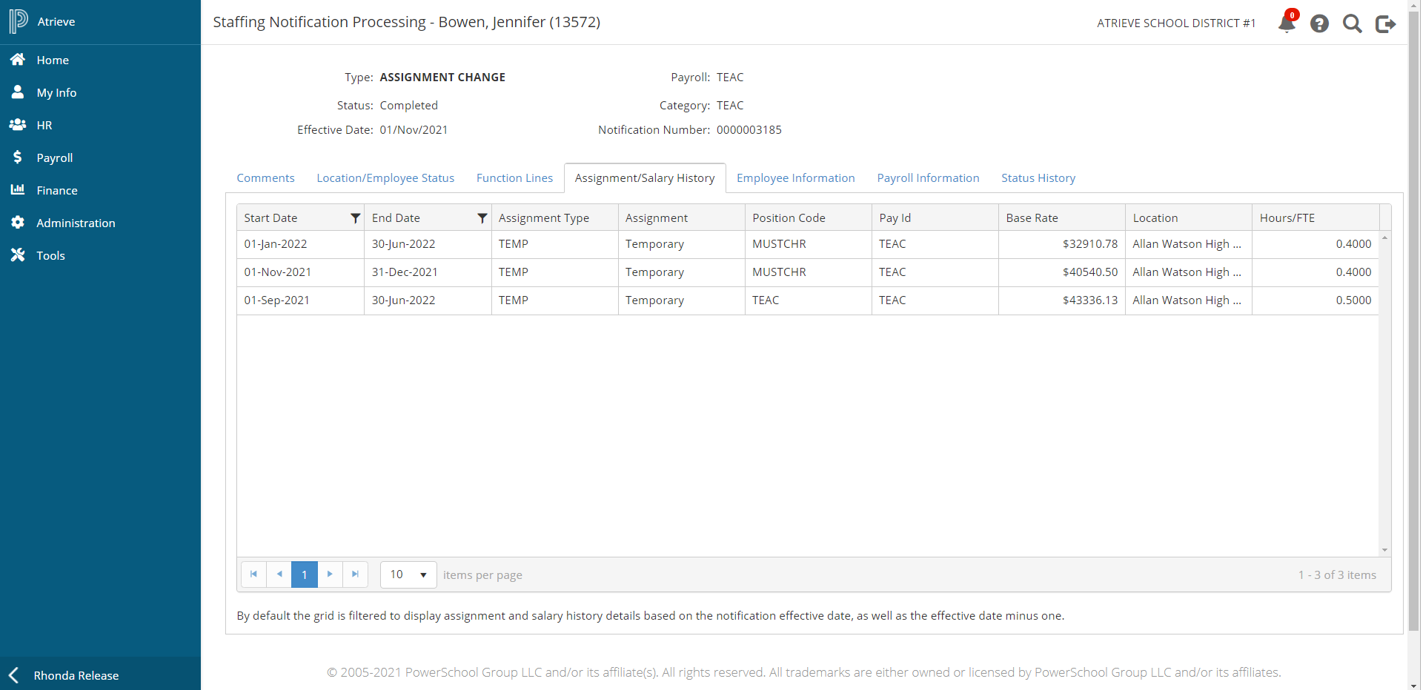
Assignment /Salary History
The Assignment/Salary History page includes the assignment and salary history details based on the notification effective date as well as the notification effective date minus one. To view additional historical information you can change the date range by selecting the start date or end date filter
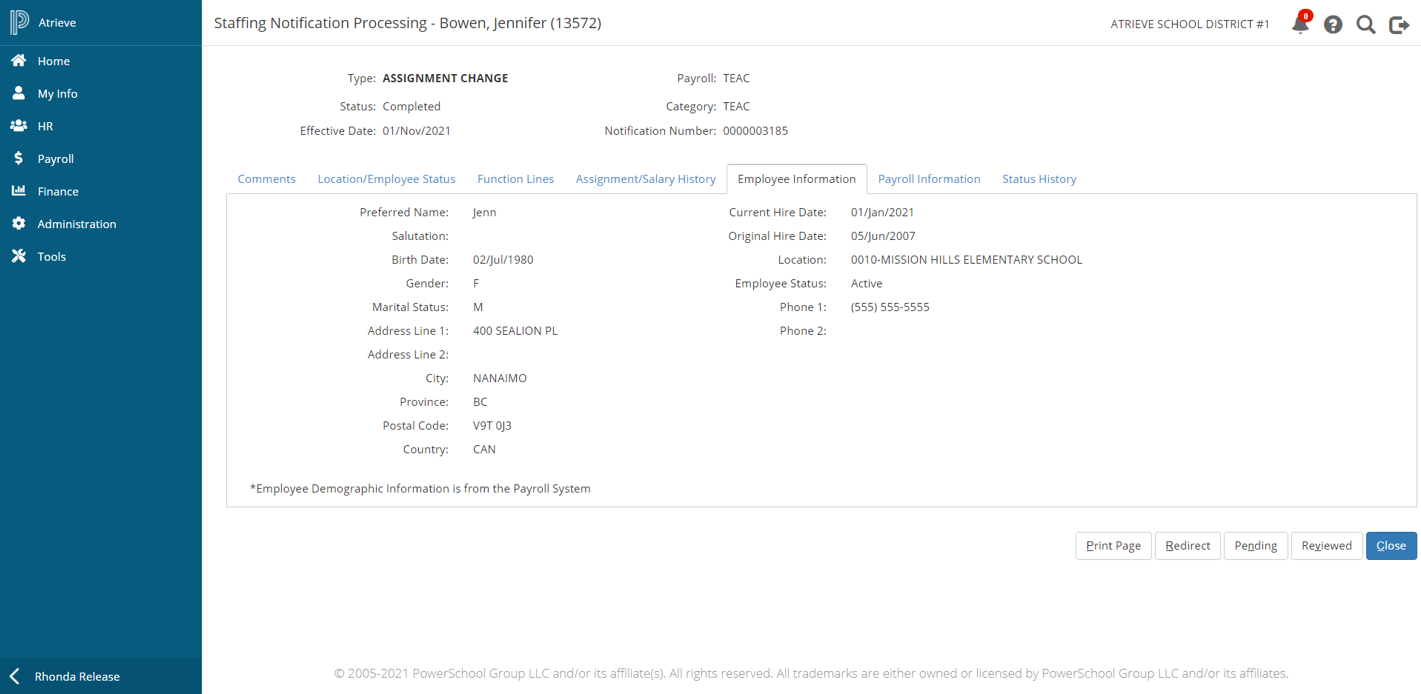
Employee Information
If the employee exists in HR but not yet in payroll then the employee information that displays will be from the HR system. If the employee exists in both HR and payroll the employee information that displays will be from the payroll system. Note that there is supplementary text at the bottom of the page that indicates where the data is being pulled from.
Payroll Information
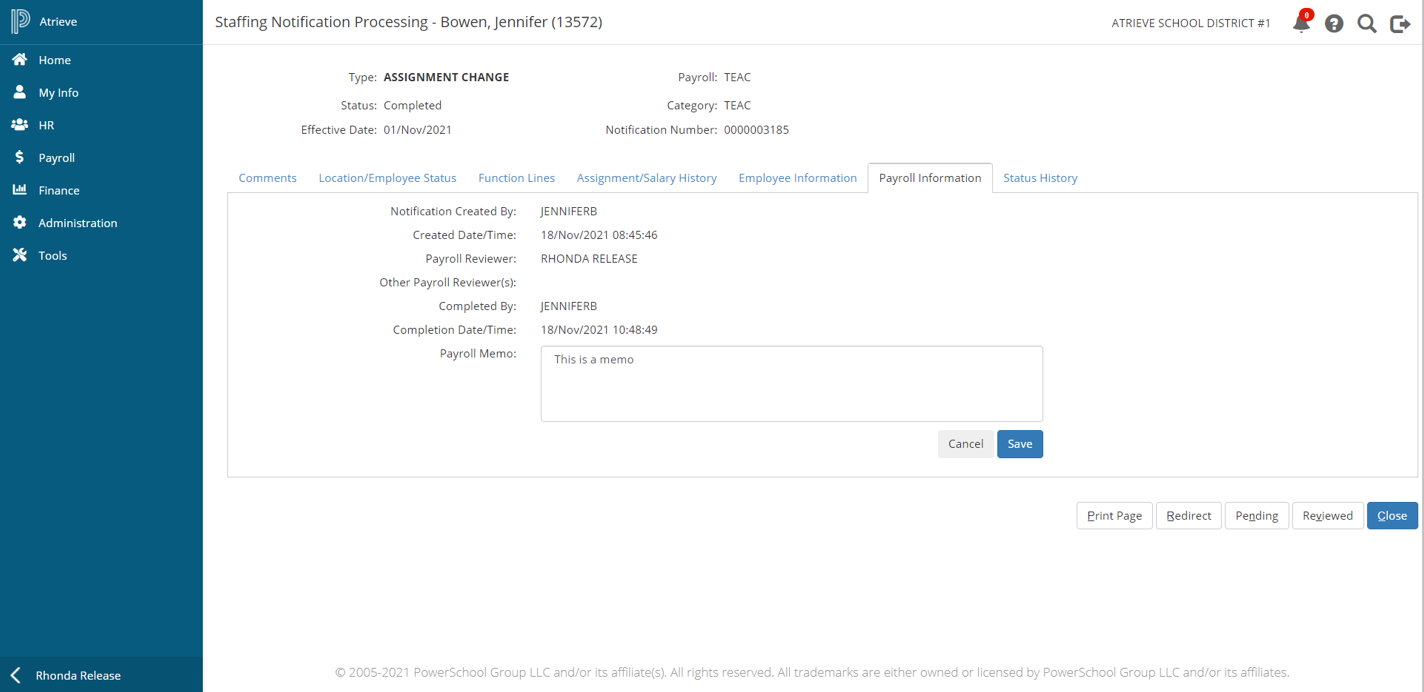
The Payroll Information page includes information about who created the notification and who reviewed the notification, with associated dates/times. In addition you can enter a payroll memo which can also be viewed from the Staffing Notification Processing list page.
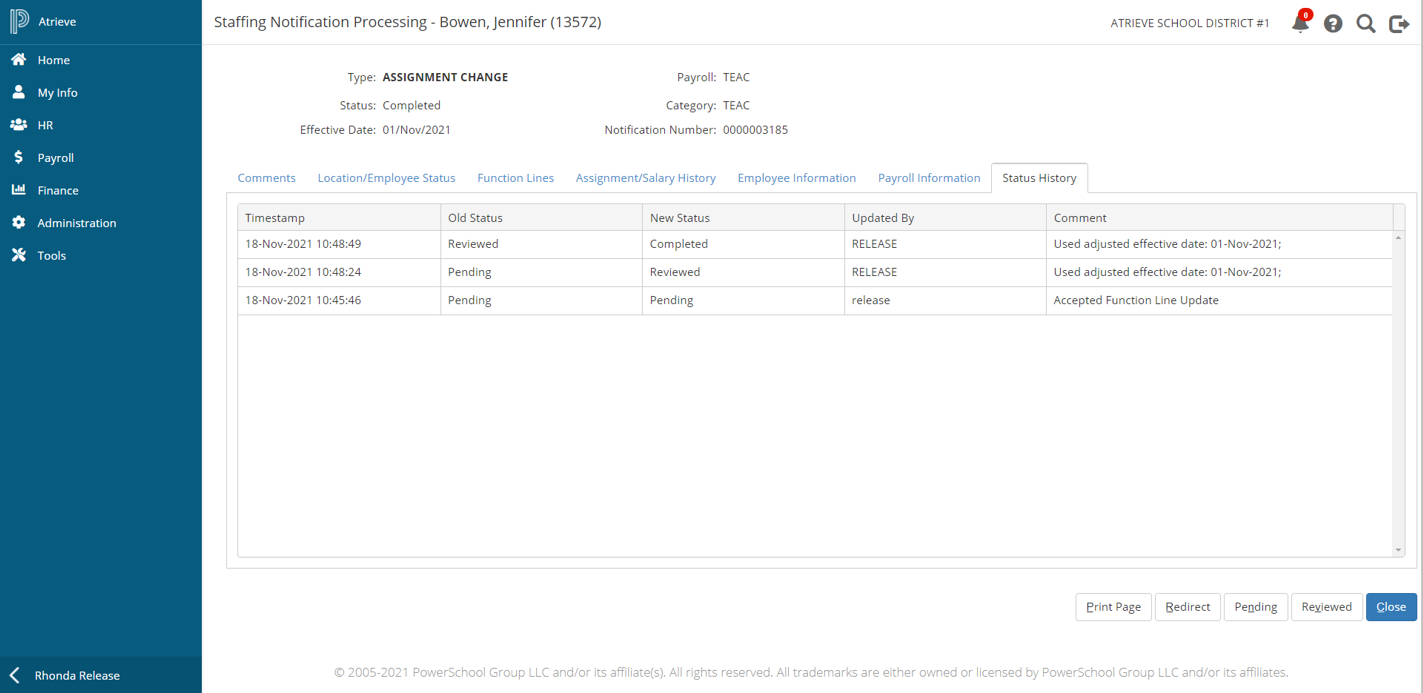
Status History
Select the Status History page to view any status changes for the notification, for example, pending to reviewed and reviewed to completed.