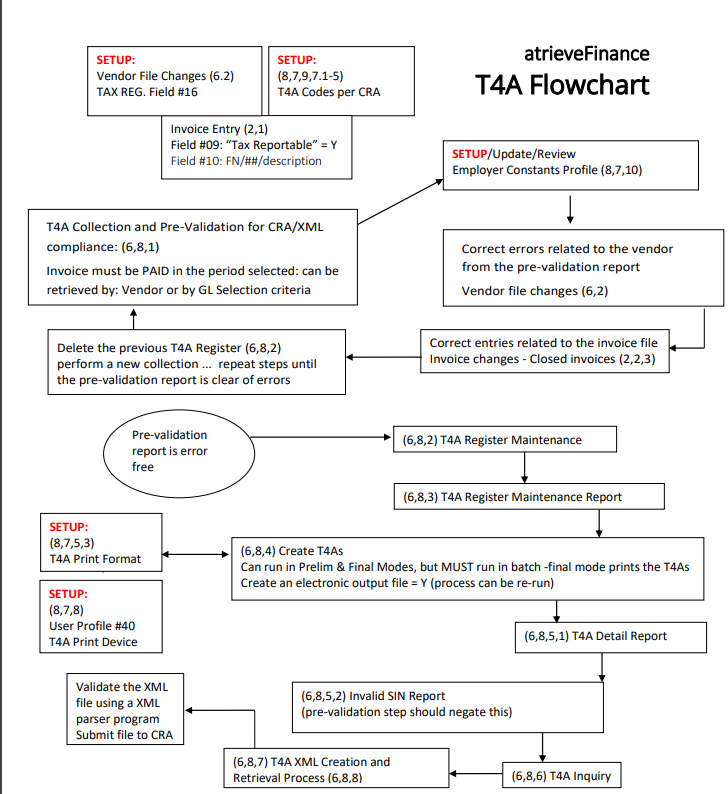
T4A Process for Finance
Vendor Setup for T4A
-
Vendors > Vendor Changes
-
On Page 2, enter the TAX REGISTRATION (SIN Number) to enable the “TAX REPORTABLE [Y/N]” prompt during invoice entry.
-
Entering a tax registration number of 000000000 identifies the vendor as a corporation for the T4A process and prints the GST number in box 13 on the T4A. Ensure the GST REGISTRATION Number is followed by RT0001 for a total of 15 characters.
-
Using a ‘Dummy SIN’ in the TAX REGISTRATION field will group the T4A by unique vendor name.
Note: The “Dummy SIN” is defined in Finance User Profile: Finance Setup > Profiles > User Profile (Page 3).
Footnote Code & T4A Box Setup
-
Finance Setup > Database Menu > T4A Footnote Codes
-
Footnote Codes identify the reported amounts to the CRA.
-
Each Footnote Code must have a T4A box number (3 digits).
-
Footnotes can be assigned in two ways:
-
Entered in the invoice description box during invoice entry or within invoice changes (less common). Example: FN/05 for footnote code 05.
-
Applied based on the GL codes on the invoice using T4A GL Selection Criteria in the atrieveFinance database (more common).
T4A GL Selection Criteria Setup
-
Finance Setup > Database Menu > T4A GL Selection Criteria
-
Set up GL selection criteria to select invoices for the T4A register and associate them with a footnote code.
Employer Constants Profile
-
Finance Setup > Profiles > Employer Constants Profile
-
Ensure all required and desired parameters are entered and correct.
T4A Register Selection
-
Vendors > T4A > Register Selection
-
Enter starting and ending dates. Hit enter on the starting period and ending period, say Yes to create new T4A, and enter a name for the new register.
-
Saying No to GL selection criteria will still add the footnote codes that have been set up T4A GL Selection Criteria.
-
Address any issues from the Pre-Validation Report (e.g., incomplete vendor names/addresses, invalid SIN numbers).
-
Correct any errors in the vendor file/source document before creating a new T4A register.
Methods to Collect Information:
-
GL Selection Criteria: Enter ‘Y’ to use GL Selection Criteria. This will pull in all invoices with GLs defined in the T4A GL Selection Criteria Database.
-
Tax Reportable Invoices: Enter ‘N’ to use the “TAX REPORTABLE [Y/N]” flag on the invoice. This will pull all invoices with Tax Reportable set to Y.
T4A Register Maintenance
-
Vendors > T4A > Register Maintenance
-
Modify, delete, or add any entries to the register.
Create T4A
-
Vendors > T4A > Create T4A
-
Choose the file, click Select, and continue.
-
Combine multiple T4A registers by selecting from the grid if needed.
-
Hit enter on the starting and ending vendor.
-
Enter the year for the T4A.
-
Continue entering all the way down until you get to the Preliminary/Final prompt.
-
Select Yes to Final and Yes to create electronic output.
-
T4As are created in your Report Viewer.
-
Ensure print options are defined as BAS$BATCH output to DISK.
-
Flag “Create Electronic Output File of T4A” to Y to create the required XML file.
-
Process is rerunnable even after running in final.
Reports Generated:
-
A.LST Error Report (should be blank)
-
B.LST T4A Detail Report
-
C.LST Invalid SIN # Report (should be blank)
-
D.LST Printable T4As
Accessing Reports and Printing T4A
-
Finance Report Viewer
-
Find the D file and E-Print with the T4A overlay.
T4A XML Creation Process
-
Vendors > T4A > Create T4A XML File
-
Generate the XML file for submission to CRA.
-
Verify the number of T4A slips generated and the internal submission reference identification numbers.
T4A XML Retrieval Process
-
Vendors > T4A > Retrieve T4A XML File
-
Export the XML file for submission to CRA.
Flow Chart