The PS Specialist will work with your Security Builder Administrator to set up the required menu options for Employee Expense Web.
The following menus should be applied in Menu Builder as noted:
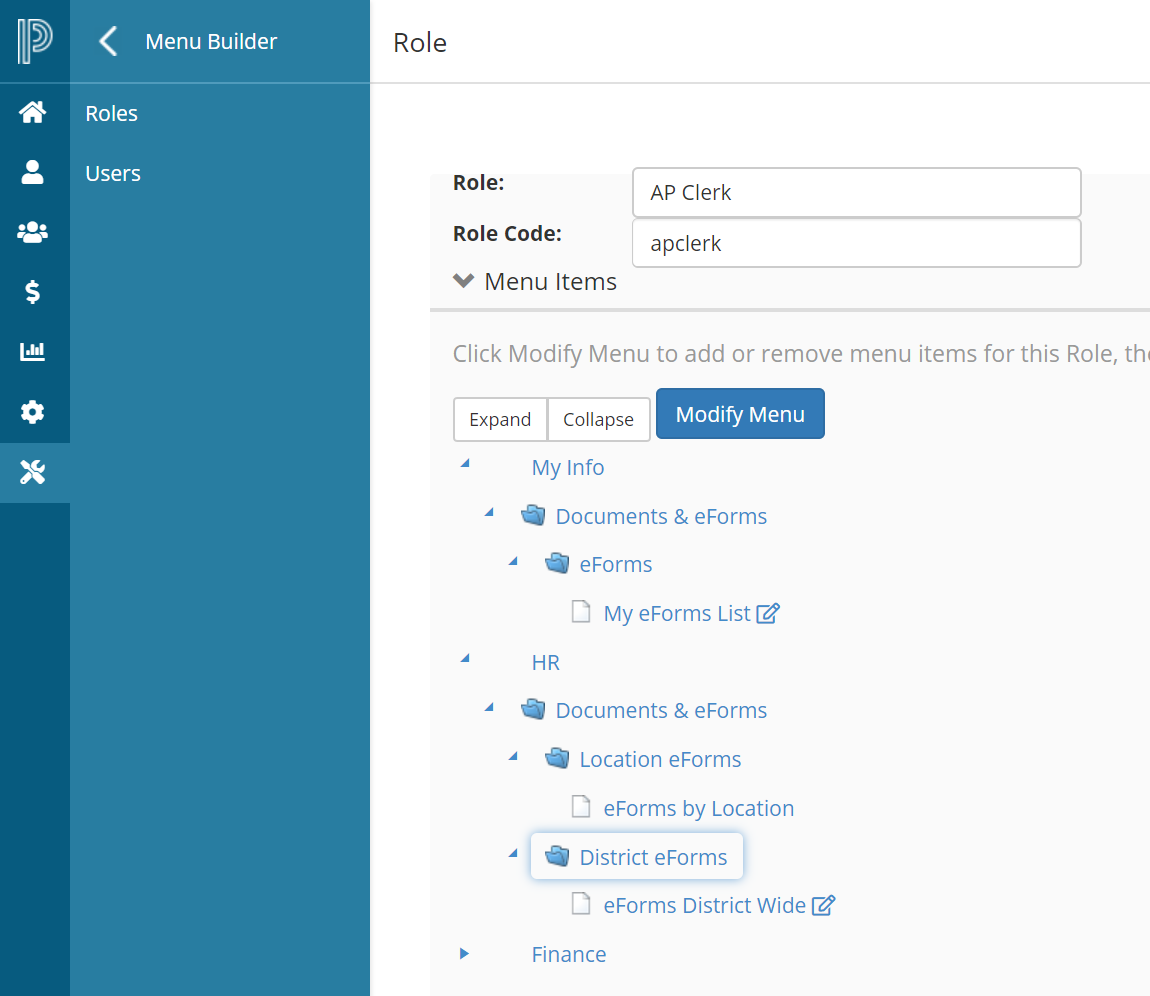
My eForms List – added to the roles of those employees that will be submitting forms electronically.
eForms by Location – added to the secretary/principal role to allow them to enter/inquire on an expense claim on behalf of another employee at their location.
eForms District Wide – added to the district office staff (where applicable) to allow them to enter/inquire on an expense claim on behalf of any employee at any location.
Menu Builder Updates:
-
From menu select Tools > Security & Setup > Menu Builder
-
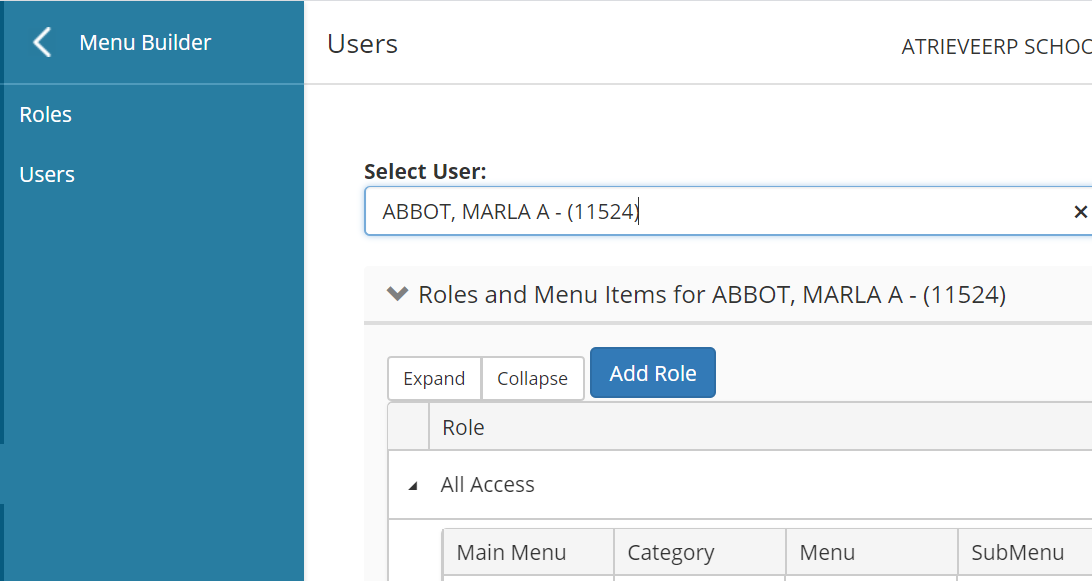
If you're unsure what Role a user is in you can use the User menu to search from them and it will display which security role they are in
-
To update the role, click Roles from the left-hand Menu Builder Menu
-
Find the Role you need to update and click the Edit button
-
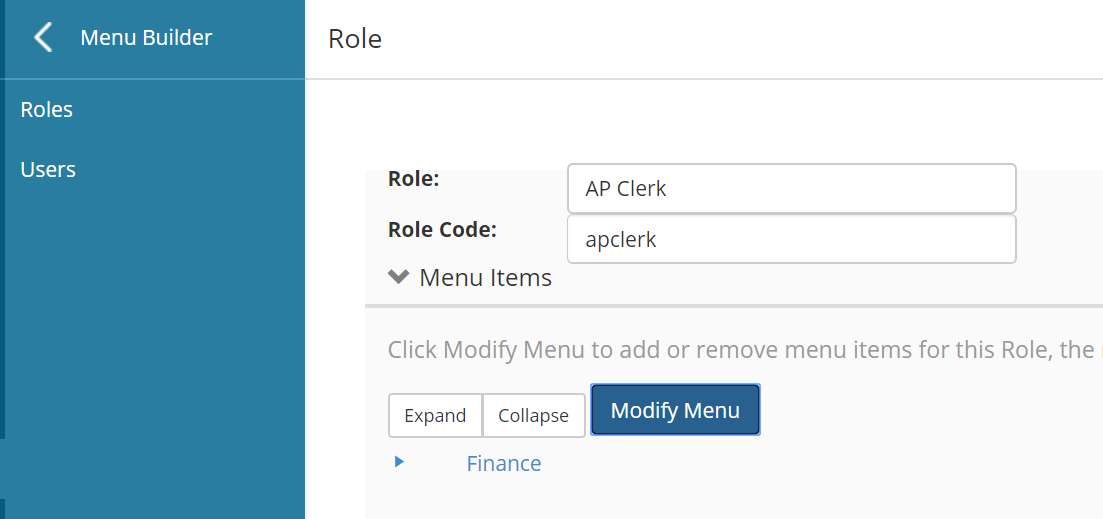
The example below indicates there is no Employee Expense Form menu options for the AP Clerk role:
-
Click on Modify Menu and then search for My Info to find options available for EEW module.
-
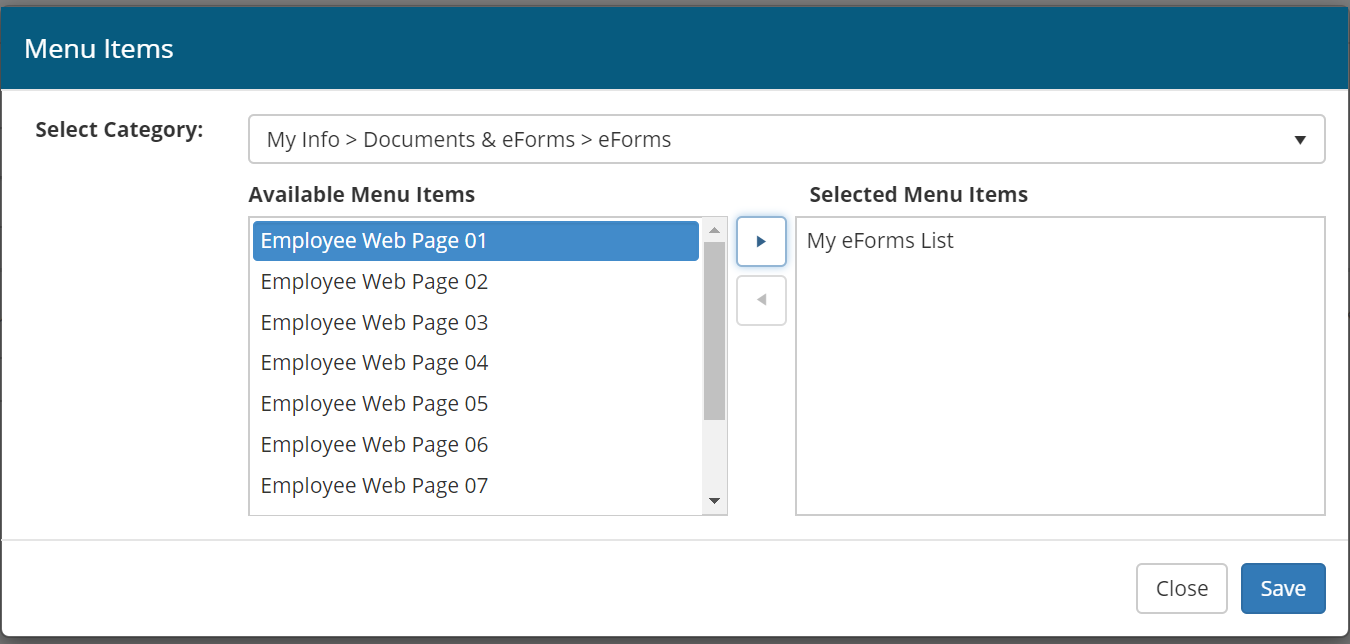
You will be shown a My Info > Documents & eForms > eForms option and click on it to select.
-
Once selected, it will show you any options available for My eForms List. Click on My eForms List to select it and click on the arrow to move it into the "Selected Menu Items" list so it will be added to this roles menu.
-
Click Save to save the selection and Save again to save the Role Menu changes.
-
Repeat this for any roles that require access to submit Employee Expense Forms from your portal.
-
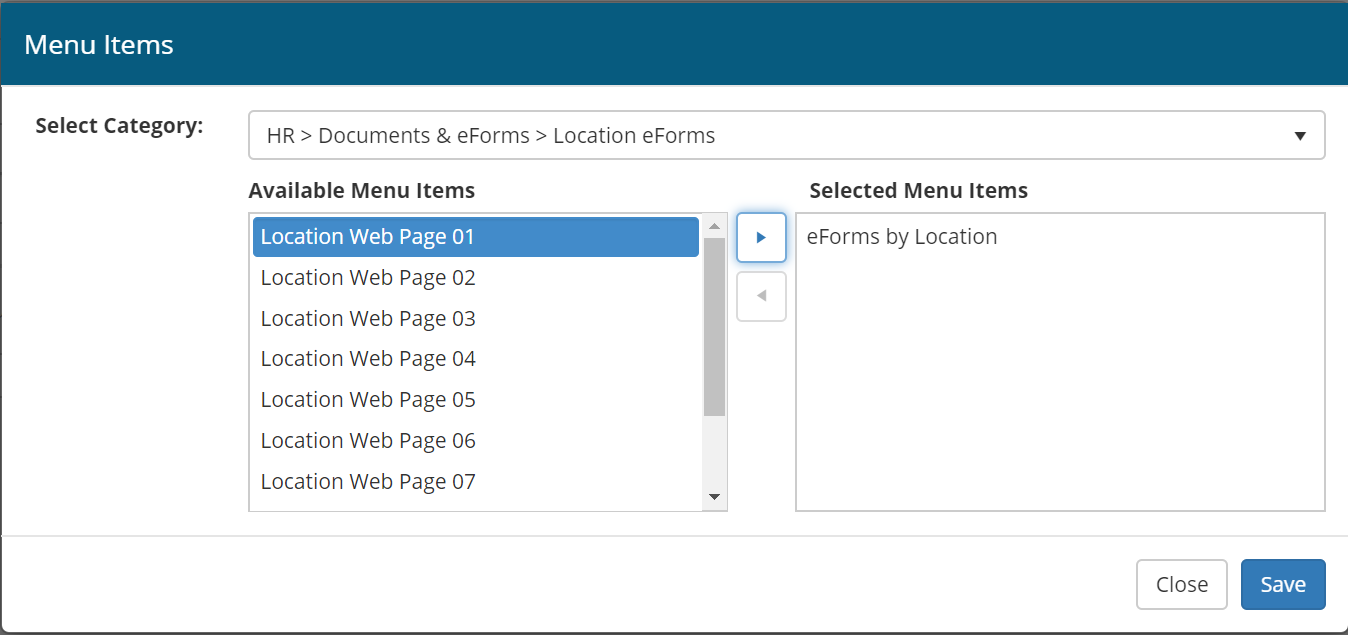
To allow access to Principals and Secretaries to submit forms on behalf of someone at their location you would update their role by searching for HR to select the HR > Documents & eForms > Location eForms options and moving the eForms by Location menu option to the Selected Menu Items list, then SAVE.
-
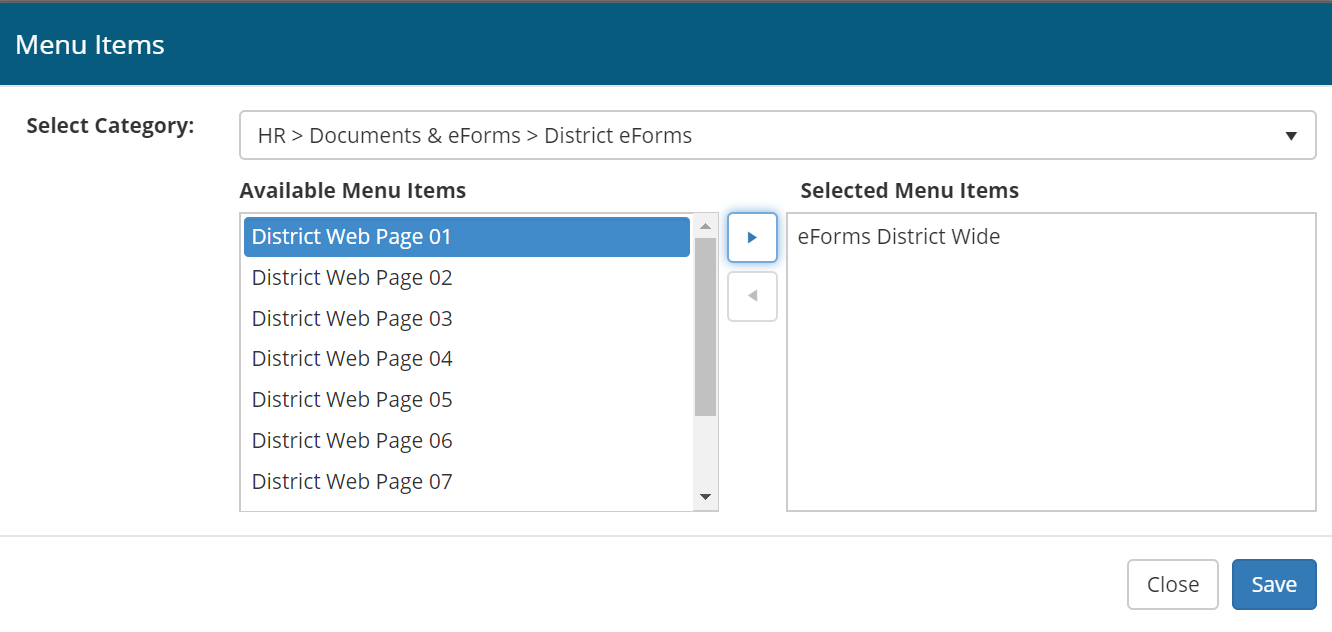
To allow access for District staff to submit forms on behalf of anyone in the district you update their role by searching for HR to select the HR > Documents & eForms > District eForms options and moving the eForms District Wide menu option to the Selected Menu Items list, then SAVE.
-
The example below shows a Role that has been given all three of the menu options for EEW