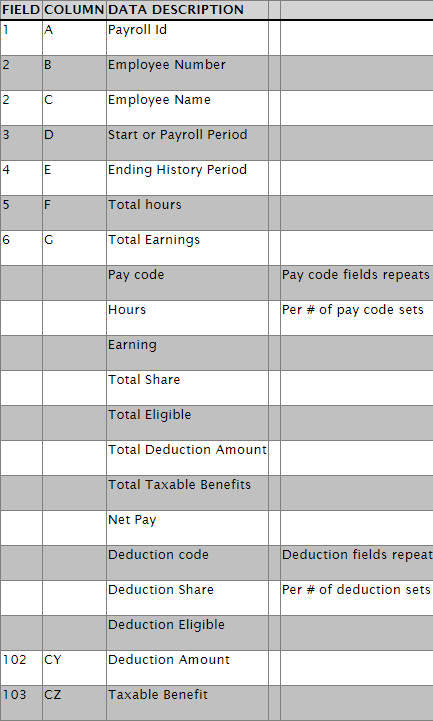
The Payroll Register Export Process generates a comma delimited export file SRB$OPSWRK:######.CSV, where ###### is the job number. The exact location and name of the export file is included in the header of the summary report. This process will export earning and/or deduction per employee. The process can be run for either a range of history periods or from an already created Payroll Processing run. To export Payroll Processing values you must have run the Earnings Detail, Earning Summary and Payroll Processing phases of the payroll but before the Payroll Update is run.
The comma delimited export file size varies based on the number of sets of pay and/or deduction codes included in the data exported. For each employee row the pay and deduction information is lined up according to the code value. All pay code 01 hours and earnings in the same columns, all like deduction code amounts, share etc. in the same columns.
Default Prompt Storage & Retrieval
This process includes the option to maintain multiple sets of stored prompts.
Name the prompt sets by defining a title up to 10 characters, with a 30-character description.
On the first prompt click the Report Defaults icon to select an existing set of prompt values. You can delete prompt sets or change the description from the Report Default icon.
Batch and Print Queue Screen
Report on Payroll History or Payroll Processing [H/P]
Enter ‘H’ to generate an export based on year-to-date history values.
Enter ‘P’ to generate an export based on the values from a Payroll Processing run.
When Payroll Processing is Selected The Following Appears:
Enter Payroll Processing Pay Period [YYYYPP]
Enter the pay period of the Payroll Processing run to be exported.
When History is Selected The Following Three Prompts Appear:
Enter Starting History Pay Period [YYYYPP]
Enter the first pay period in a range of history periods to be exported.
Enter Ending History Pay Period [YYYYPP]
Enter the ending pay period in a range of history periods to be exported.
Report Pay / Adjustments / Manual Cheque / Cheque Cancel [P/A/M/C]
Enter to include all history record types.
Enter the history record types to be included in the export. More than one history record type can be reported at one time.
Select the 'clear' icon to clear the selected history record types.
Enter Pay Code Include / Exclude [E/I]
Enter 'E' to indicate the following list of pay codes will be excluded from the export. Enter ‘E’ followed by no pay codes mean to exclude nothing or export all pay codes.
Enter 'I' followed by no pay codes means to include nothing or include no earnings. When include no earnings is selected an additional prompt will display that will allow you to completely omit the earnings columns from the export.
Enter Pay Codes [XX]
Enter 1 to 25 pay codes to include/exclude from the list of pay codes to be exported.
Enter Deduction Code Include / Exclude [E/I]
Enter 'E' to indicate the following list of deduction codes will be excluded from the export. Enter ‘E’ followed by no deduction codes mean to exclude nothing or export all deduction codes.
Enter 'I' followed by no deduction codes means to include nothing or include no deductions. When include no deductions is selected an additional prompt will display that will allow you to completely omit the deduction columns from the export.
Enter Deduction Codes [XX]
Enter 1 to 25 deduction codes to include/exclude from the list of deduction codes to be exported.
Report By Employee Number Or Employee Name [E/N]
Enter ‘N’ to generate the export sorted by employee name.
Enter 'E’ to generate the export sorted by employee number.
The summary report lists the following:
-
Employee number and name
-
Employee’s total hours and total earnings
-
Employee’s total deduction share and eligible earnings
-
Employee’s total deduction amount and taxable benefits
-
Employee’s total net pay.
-
Total number of employees report and exported.
-
Total for all columns.
The comma delimited export file format is: