
Overview
Purchase Order Workflow provides an extra layer of security for managers to review all purchase orders electronically from Task Manager and to provide authorization before the purchase order can be printed.
Authorization
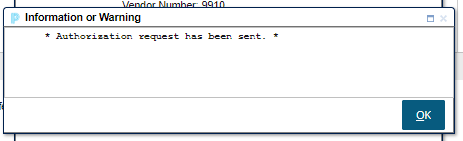
The purchase order will be entered through purchase order entry in AtrieveFinance. Please note that it is important that the ship to vendor is always entered (this is how routing is determined). Upon submission, the following message will display:
The authorizer will receive an email notification advising that a Purchase Order Approval Task requires their attention. A link to open the task is available that will take them directly into the web portal and will load the PO Authorization screen:
A task is also created on the authorizer’s Task Manager, which will allow access to the same Purchase Order Authorization screen by selecting the Task ID hyperlink:

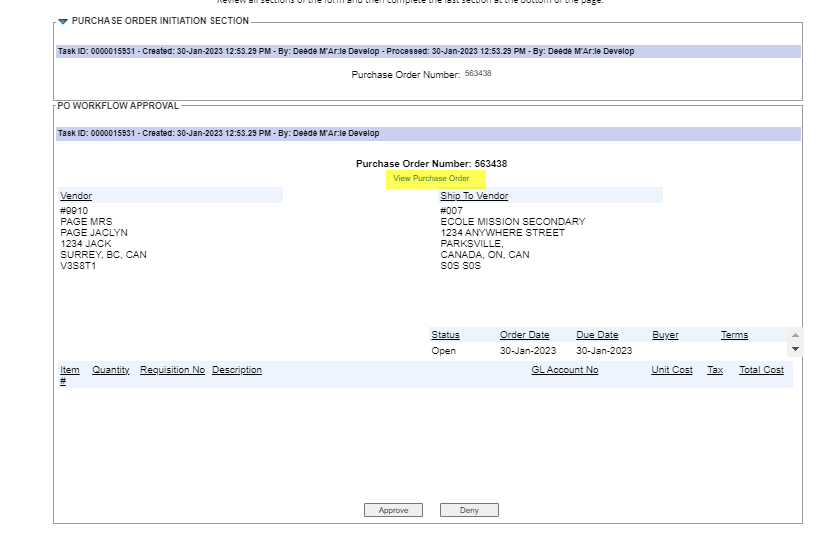
The resulting Purchase Order Authorization screen provides the purchase order details and a link to ‘View Purchase Order’ and attachments (if option is enabled through DSS license).
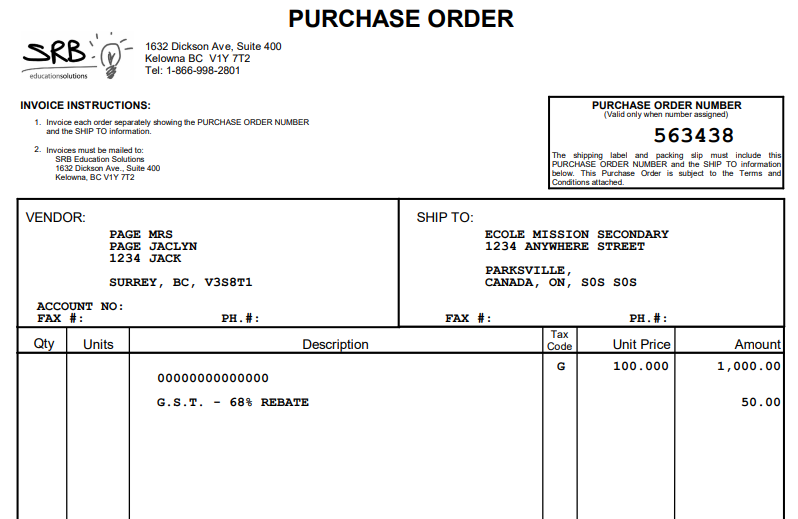
Clicking on the View Purchase Order hyperlink will allow the authorizer to view the purchase order details.
Approve or Deny the Purchase Order
If denied, the authorizer will be able to send a message to the originator providing specifics as to why the purchase order was denied. The originator can then make any required changes through the PO Changes menu before re-submitting the purchase order for approval.
Once authorized, the purchase order will be sent by the method specified on the Purchase Order Print Screen.
Purchase Order Changes
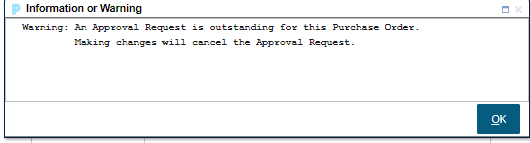
If changes are to be made after it has been submitted for authorization, a new authorization request will be routed to the authorizer for authorization:
Authorization Status Updated
The PO Inquiry Status will be updated on all lookup screens, as shown below:
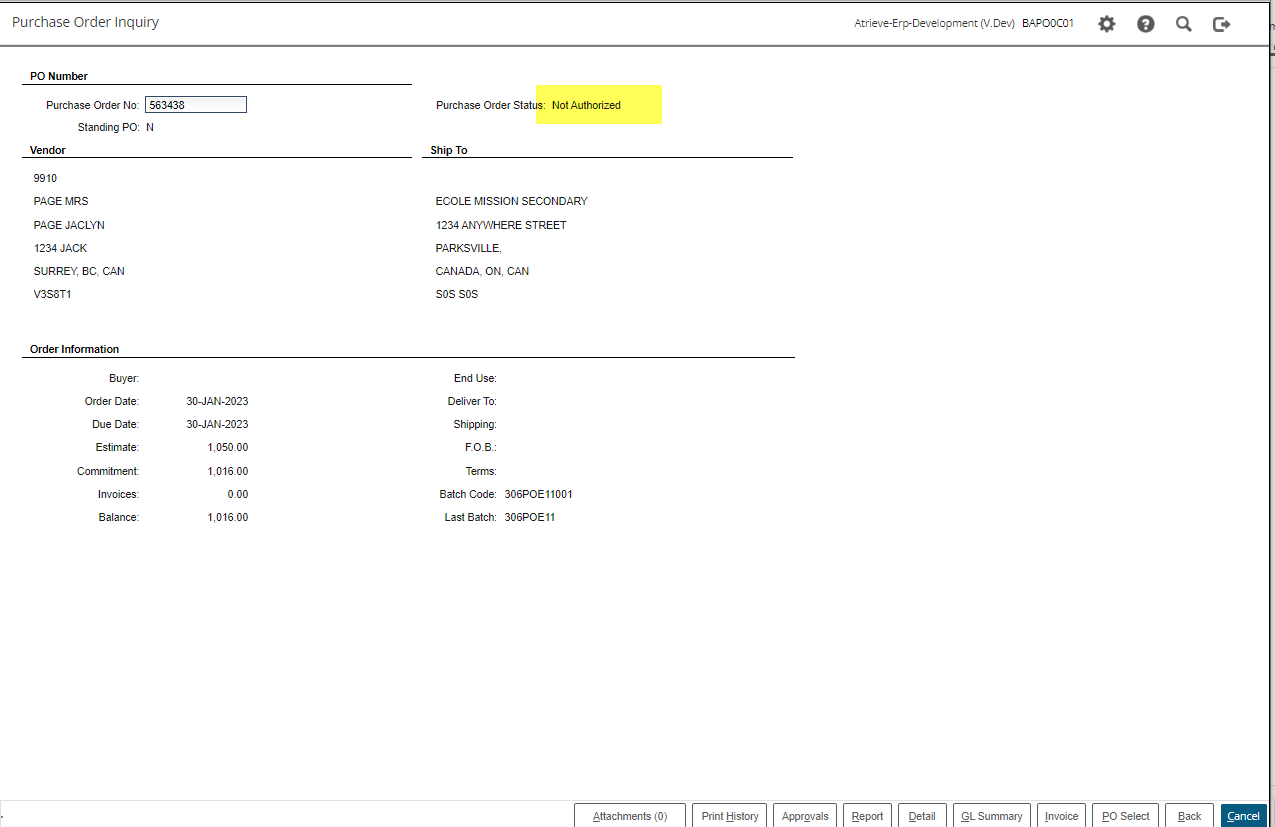
Approvals Audit
The approval status can also be tracked by selecting the ‘Approvals’ icon, this screen will show each stage of the workflow and authorization status details.
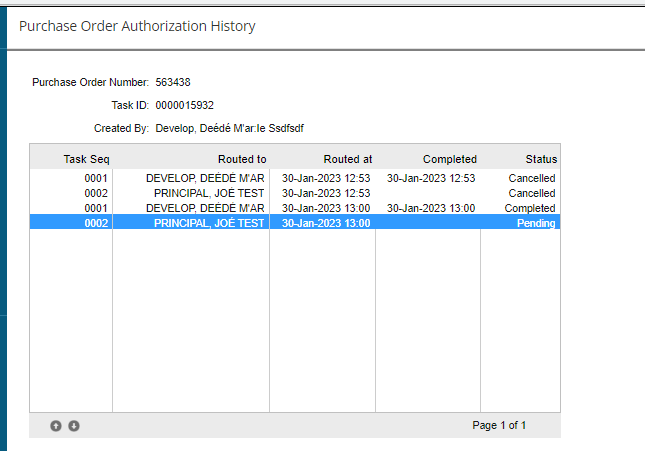
Print History
After approval, you can go back into Purchase Order Inquiry and view the print the print history.
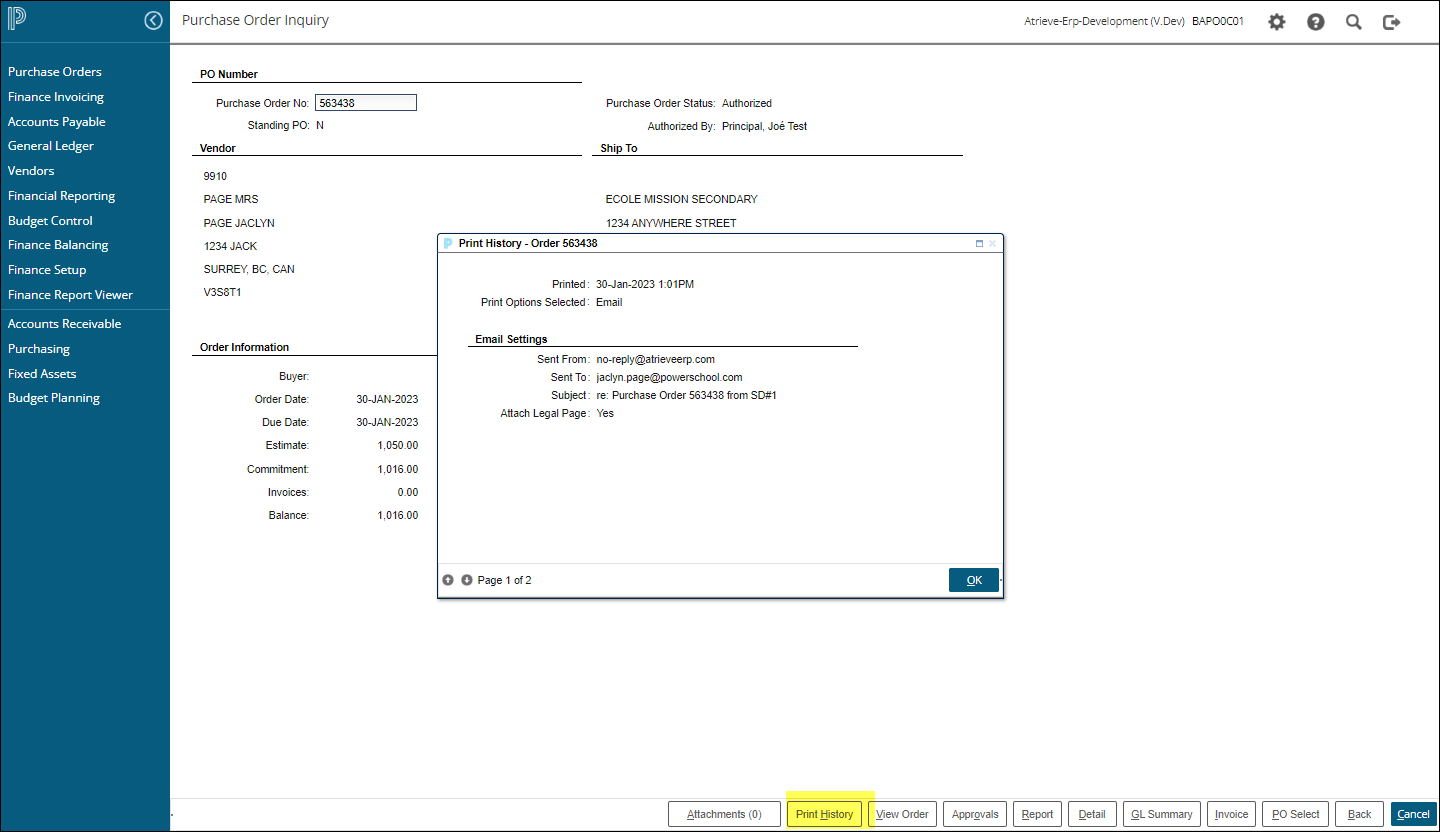
Pending Purchase Order Print Selection
A new menu will be added to the Purchase Order Menu à Pending Purchase Order Print
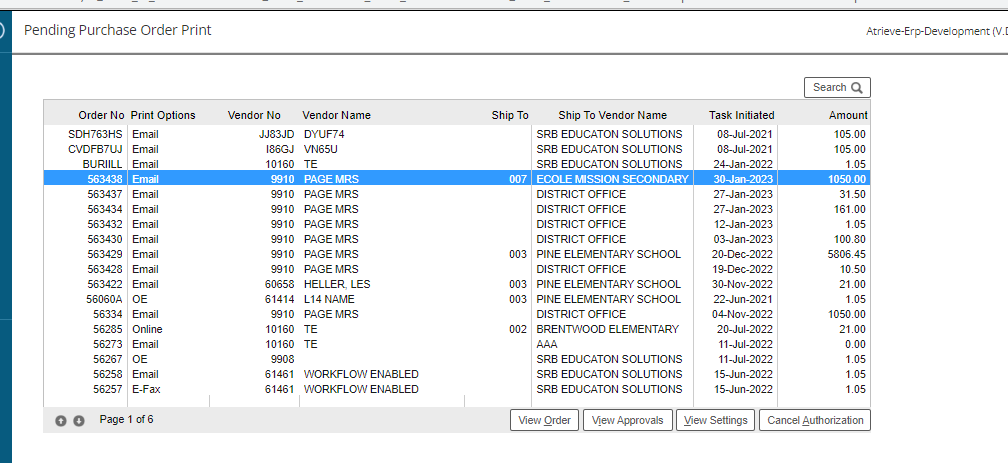
This multi-purpose screen provides several features, including:
-
Refresh – updates the screen with the most recent current/history.
-
Order – loads the PO Inquiry screen with full details of the selected PO.
-
Approvals - Provides the ability to review the ‘Approvals’ and status of the purchase order.
Allows for the override of the authorization and immediate printing of the PO.
-
View Settings – provides details on PO Print Options selected:
-
Current/History – toggle to view the current pending purchase orders or the history of orders previously authorized.