Select Format
Choose the format which was defined in the Interface Profile Menu.
Enter Accounting Period
-
Enter the accounting period to receive the transactions from this interface batch. The accounting period specified is used to create the batch header and log all the transactions processed for this interface run.
Original/Revision Run
-
Enter 'O' if the interface file is to affect the original budget field in atrieveFinance.
-
Enter 'R' if the interface file is to affect the revised budget field in atrieveFinance.
Replace/Adjust Existing Budgets
-
Enter 'R' to replace the budget field with the new values from this interface. It will replace either original or revised budgets based on your criteria specified in the field above.
-
Enter 'A' to adjust the budget field with the values from this interface file. This will adjust either original or revised budgets based on criteria specified in the above field.
With the two prompts above, this interface can be run four different ways:
Original – Replace
This combination replaces the value in the GL for both Original and Revised. The audit trail transaction value will be the difference between the beginning Original and the transaction amount and the reversal of any revision transactions.
The following table provides examples of the results to be expected from the various conditions presented.
|
Ex. No. |
Trans. Amount |
GL OB Before |
GL OB After |
GL RB Before |
GL RB After |
OB Audit Trail Trans. Amt. |
RB Audit Trail Trans. Amt. |
|---|---|---|---|---|---|---|---|
|
1 |
10,000 |
0 |
10,000 |
0 |
10,000 |
10,000 |
Ø |
|
2 |
10,000 |
1,000 |
10,000 |
1,000 |
10,000 |
9,000 |
Ø |
|
3 |
10,000 |
12,000 |
10,000 |
5,000 |
10,000 |
-2,000 |
+7,000 |
Original – Adjust
This combination adjusts the Original and Revised budget by the amount of the transaction. You must use this option if you have already made budget revisions or transfers after the Original budget was entered.
The following table provides examples of the results to be expected from the various conditions presented.
|
Ex. No |
Trans. Amount |
GL OB Before |
GL OB After |
GL RB Before |
GL RB After |
Audit Trail Trans. Amt |
|---|---|---|---|---|---|---|
|
1 |
10,000 |
0 |
10,000 |
0 |
10,000 |
10,000 |
|
2 |
10,000 |
1,000 |
11,000 |
1,000 |
11,000 |
10,000 |
|
3 |
10,000 |
12,000 |
22,000 |
5,000 |
15000 |
10,000 |
Revision – Replace
This combination will replace the Revised budget with the amount of the transaction. It will not alter the Original budget.
The following table provides examples of the results to be expected from the various conditions presented.
|
Ex. No. |
Trans. Amount |
GL OB Before |
GL OB After |
GL RB Before |
GL RB After |
Audit Trail Trans. Amt. |
|---|---|---|---|---|---|---|
|
1 |
10,000 |
0 |
0 |
0 |
10,000 |
10,000 |
|
2 |
10,000 |
1,000 |
1,000 |
1,000 |
10,000 |
9,000 |
|
3 |
10,000 |
12,000 |
12,000 |
5,000 |
10,000 |
5,000 |
Revision – Adjust
This combination will adjust the Revised budget by the amount of the transaction. It will not alter the Original budget.
The following table provides examples of the results to be expected from the various conditions presented.
|
Ex. No. |
Trans. Amount |
GL OB Before |
GL OB After |
GL RB Before |
GL RB After |
Audit Trail Trans. Amt. |
|---|---|---|---|---|---|---|
|
1 |
10,000 |
0 |
0 |
0 |
10,000 |
10,000 |
|
2 |
10,000 |
1,000 |
1,000 |
1,000 |
11,000 |
10,000 |
|
3 |
10,000 |
12,000 |
12,000 |
5,000 |
15,000 |
10,000 |
|
KEY: |
GLOB |
Original Budget |
|
|
GLRB |
Revised (Current) Budget |
Use Filename As Batch Default?
If the file name is not used as the batch default, an additional prompt will allow a batch code to be entered and all available prompts will be available.
Budget REF #
A default reference can be entered at this prompt for all entries in the import file.
If the reference field has been defined in the Budget Entry Interface Profile, a message box will allow you to over-ride the references in the import file.
Budget Batch Description [MAX 30]
If the reference data is not defined in the profile, a default description can be entered at this prompt.
If the description field has been defined in the Budget Entry Interface Profile, a message box will allow you to over-ride the references in the import file.
ALL Prompts and responses from this point to submission are identical to the Journal Entry Interface. Refer to Journal Entry Interface documentation for details.
This interface produces a report both in preliminary and final mode that shows the adjustment that will be made to the original or revised budget. It is important that you review the last column to ensure that the new budget it is going to create is the expected result. When you run the process in final mode the budget batch it is going to create will be listed on the left-hand side of the report. This interface automatically makes an entry to the system clearing account to create a balanced batch if your budget entries do not balance.
Uploading file
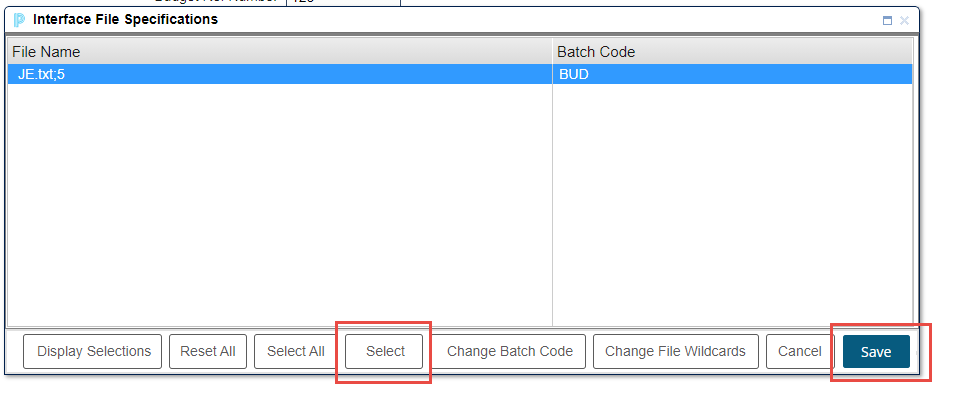
Click on the upload button, select file for upload.
When you see the file name in the upload box click the select button and then save to load.