
|
Issue or Error |
Notes |
|---|---|
|
The storage bank balances are showing at zero, but they have a negative balance in payroll |
As negative amounts will be rejected by BCPSEA when the submission is sent, the extract will change any negatives to show zero instead so that changes won’t need to be made manually. |
|
Casuals in the validation messages |
The most frequent error seen is that there is no union code. When new ttocs or casuals are hired, the union must be entered on the third page of employee demographics in HR. If a teacher or support staff retires and the extract cannot find an assignment within the current reporting year, it will assume that they are a casual and look to the third page of employee demographics in HR for their union. If employees come back to work as a casual – remember to add their union! |
|
Error message - cannot find the hourly rate of pay |
Suggestions for resolution:
|
|
Error message - no annual salary |
|
Hints:
One of the biggiest issues with the uploads has been Casual Position codes being mapped to a Permanent or Temporary Employment status, or a regular position being mapped to a casual status. Logic states that an employee cannot hold a casual position and be a permanent employee at the same time. If this cannot be avoided due to specific HR reasons, then manual changes will need to be done to the status or the position in the BCPSEA extract editor.
Where is the data that I’m seeing being pulled from so I know where to go to fix it?
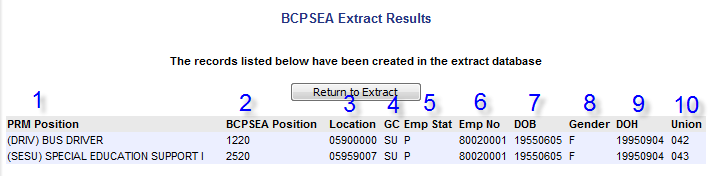
-
PRM Position – Directly from the HR Assignments
-
BCPSEA Position – from the BCPSEA Position Profile
-
Location – From HR on each assignment. Location number from the BCPSEA data in the BCPSEA Position Profile
-
GC – General Classification from the BCPSEA Position Profile
-
Employment Status – from the BCPSEA Assignment Type Profile
-
Employee Number – Employee Demographics - HR
-
DOB – Employee Demographics – HR
-
Gender – Employee Demographics – HR
-
Date of Hire – Employee Demographics, Hire Date –HR
-
Union – from the Union Code in the BCPSEA Position Profile. The number showing is the BCPSEA union code.
If anything is changed in the profiles, the extract will need to be run again. If it affects all, then run the extract for all, a specific group, run for a group, or just an individual, run just for that individual.
From here, go to the Process Error Results to review the long list of error messages that will appear here the first time through. Once those have been addressed, then come back to the individuals or categories.
When an EX, EU, EN or SU employee also does TTOC time, this needs to be reported as a separate record. This record is created when the extract is done and payment has been made to the employee on the TTOC payroll. These are listed at the bottom of the Extract Results.
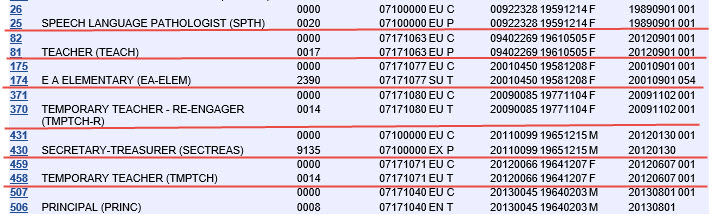
Here you see the regular record, and above that the newly created ttoc record. Element 19 (year to date), Element 29 (ttoc days), Element 30 (ttoc earnings) and any employer paid deductions on the ttoc payroll are reported on this new ttoc record.