
Brother QL-700 & QL-800 series
The purpose of this Job Aid is to provide steps on how to setup and configure the Brother QL-700 Label Printer for the printing of bar codes from atrieveFinance Invoice Entry. Bar codes are used for the bulk scanning of invoices into the Document Storage Solution (Eg. Sharepoint, Docushare, Laserfiche) for retrieval from atrieveFinance and Budget Manager Web.
These specifications are for the Paper Label Model Number DK2205 (62mm x 30.48m roll) and will maximize the number of labels that can be printed. A roll of paper labels should print approximately 1,016 bar codes. Also compatible with the QL800’s DK-22251.
The QL700 can only use Black on White Labels (DK2205)
The QL800 can use both Black, and Black/Red on White Labels (DK2205 and DK22251)
|
Step |
Name |
Description |
|---|---|---|
|
1 |
Install CD |
To install and configure the Brother QL-700 Label Printer: Have District IT Department install drivers from CD included with the Brother QL-700 Label Printer directly onto your computer. Instructions and CD are included with the printer. |
|
2 |
From the Start Menu, select Devices, select Printers & Scanners |
Click on Brother QL-700, click Managee, and click on 'Printer Properties'. Highlight and press CTRL-C to copy the name of the printer in the Properties panel. Go into your hidden icons panel on the bottom right of your screen, right-click the DirectPrint icon, and choose Configuration. 
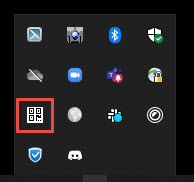
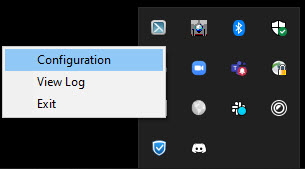
Paste the name of the printer you copied into the Printer Name field and Save 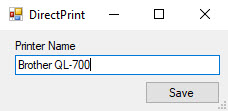
Go into your hidden icons panel on the bottom right of your screen, right-click the DirectPrint icon, and choose Exit. 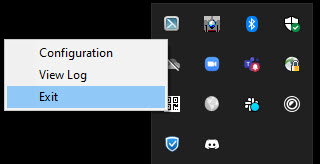
Double click the DirectPrint icon on your desktop to restart the application. 
Important: The printer name must be Brother QL-700 in order for the direct label printing to work. |
|
3 |
From the Start Menu, select Devices, select Printers & Scanners |
Click on Brother QL-700, click Managee, and click on 'Printer Preferences' |
|
4 |
Change default measurement units |
From the 'Other' tab, ensure that the 'Unit' is set to mm: 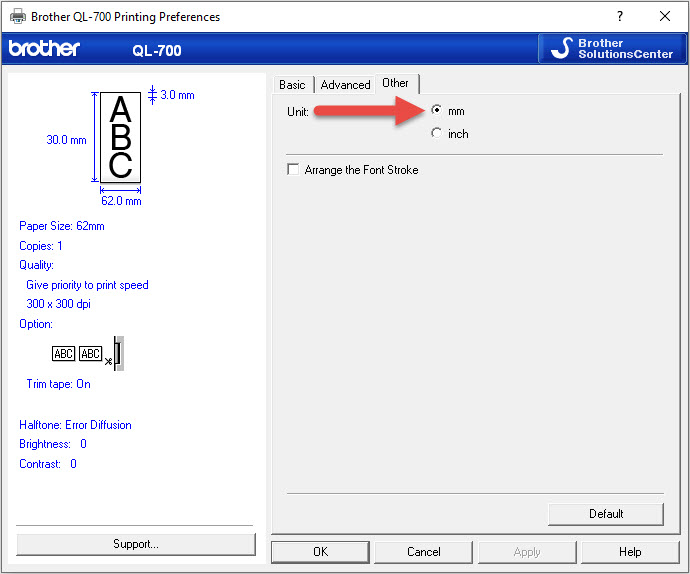
From the 'Basic' tab, change the Paper Size to 62mm:
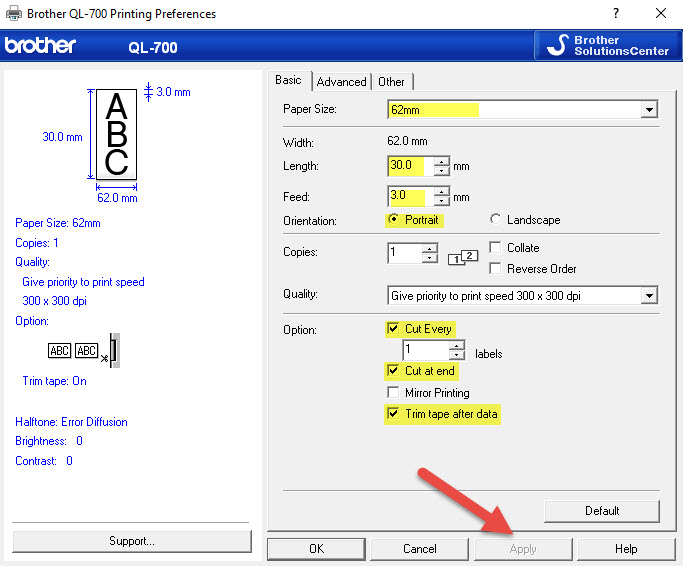
Click 'Apply', then 'OK' to exit 'Printing Preferences' |
|
5 |
Launch atrieveFinance |
Print A Test Label a. Access Invoice Changes and load an invoice b. Click the 'Print Barcode' button c. A correctly formatted label should print, the printer should cut the label paper, and the label should be ejected from the printer.
Your custom bar code label printer is now ready to use. |