
Document Upload Management Console
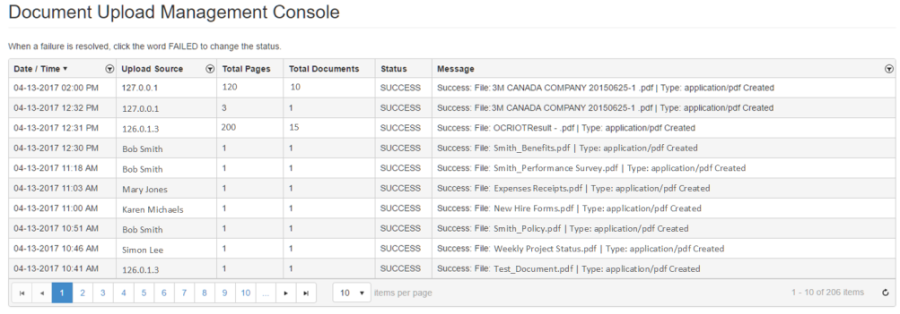
The Document Upload Management Console provides you with a way to view the status of your uploaded documents. Whether a single document upload or a bulk scan and upload, you will be able to verify if your file uploaded successfully as well as the number of pages uploaded and how many documents were created based on the associated barcodes.
System Requirement: You must have DSS/BDM installed in order to access the Document Upload Management Console (DSS – Document Storage Solution/BDM – Bulk Document Management)
-
To access Document Upload Management you will need your menu access configured. Once configured, select the menu option for 'Document Upload Status' and the page will display
-
Columns that display include:
-
Date/Time – this is the date and time that the file was uploaded
-
Upload Source – the source will either indicate the name of the individual who uploaded the file or it will be the IP address of a mass scanning device like a photocopier
-
Total Pages – this is the total number of pages uploaded
-
Total Document – this is the total number of documents created, based on barcodes
-
Status – values include:
-
Success – this status will display if the document uploaded successfully, without errors
-
Failed – this status will display if the upload did not complete successfully
-
Resolved – if a failure has been resolved you have the option of changing the status to Resolved. To resolve a ticket you would just click on the word 'Failed' in the status column and the status will change to 'Resolved'
-
-
Message – a Success message will display the name of the file that was uploaded successfully. A Failed message will display the name of the file that did not upload successfully and will include the reason for the failure.
-
-
Filter/Search – you can filter the contents of the grid to locate a specific document upload by clicking on the filter icon. The filter icon is available for the following columns:
-
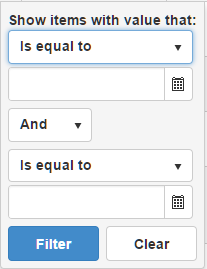
Date/Time – if you select this filter option you will be able to search for a document upload by a specific date, within a certain date range, or greater than or less than a specific date
-
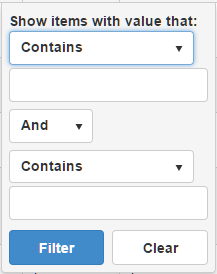
Upload Source – if you select this filter option you will be able to search for a document upload by its source, for example, you may want to find a document uploaded by 'Bob Smith', so you could enter Smith and then click filter. You will be able to search using contains, is equal to, is not equal to, starts with, ends with, and does not contain
-
Message - if you select this filter option you will be able to search for a document upload by the message, for example, you may want to find a document that has the word 'Benefits' in file name, so you could enter Benefits and then click filter. You will be able to search using contains, is equal to, is not equal to, starts with, ends with, and does not contain
-
-
Grid paging and number of rows to display per page – by default when you enter this page it displays 10 rows before paging, you can change this by selecting the items per page drop-down and selecting 10, 20, 50, or 100. In addition you can click the specific page that you want to view or click the forward or back arrows to navigate between pages.
