
|
Permission Name |
Permission Description |
|---|---|
|
Import File |
The user will be able to upload a file, define file mapping, and import the file |
|
Send Notifications |
The user will be able to send district wide notifications to selected groups |
|
View All Transactions |
The user will have access to all transactions across the district |
|
View Location Transactions |
The user will have access to all transactions at their Location |
|
View My Transactions |
The user will have access to their own transactions only |
|
Supervisor Transactions |
The user will have access to only their subordinates' transactions |
|
Final Review |
The user will be able to complete the final review of transactions before invoicing |
|
Create Invoice |
The user will be able to generate and submit an invoice |
|
Search |
The user will be able to search historical transactions. This permission is tied to the users' transaction permission |
|
View Activity |
The user will be able to view all transaction record activity across the district |
|
View Settings |
The user will be able to configure all settings |
Below is an example of a Role based structure for Purchasing Card, each district will have their own configuration based on the Roles that they define for this module.
|
Role |
Inherit Role |
Import File |
Send Notifications |
View All Transactions |
View Location Transactions |
View My Transactions |
Create Invoice |
Search |
View Activity |
Supervisor Transactions |
Final Review |
View Settings |
|
Finance Manager |
|
x |
x |
x |
|
x |
|
x |
x |
x |
x |
x |
|
School Principal |
|
|
|
|
x |
x |
|
x |
|
x |
|
|
|
Supervisors |
Purchasing Card Holders |
|
|
|
|
x |
|
x |
|
x |
|
|
|
Purchasing Card Holders |
|
|
|
|
|
x |
|
x |
|
|
|
|
Menu Builder Updates:
-
From menu select Tools > Security & Setup > Menu Builder
-
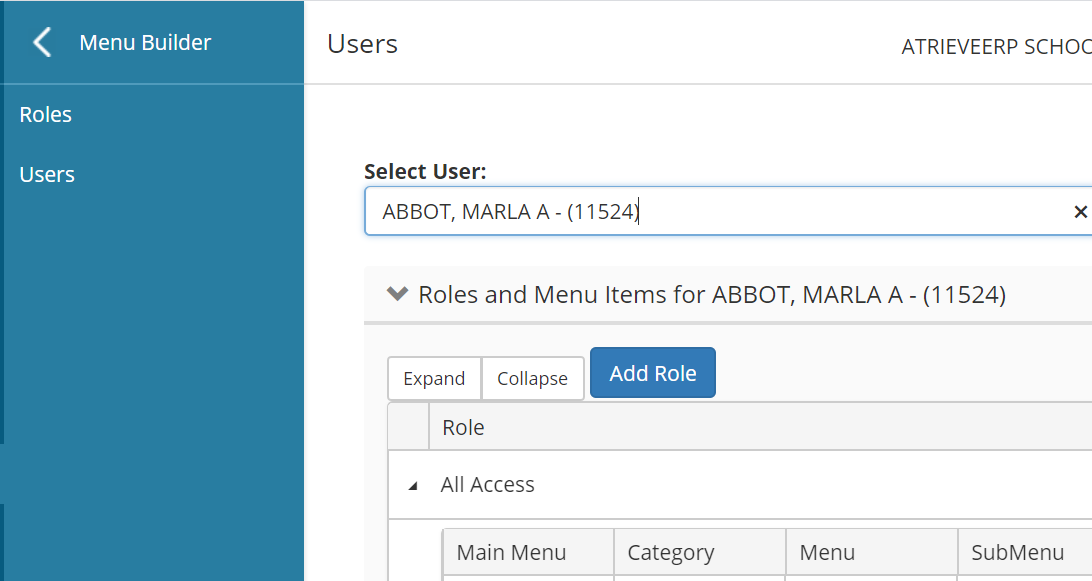
If you're unsure what Role a user is in you can use the User menu to search from them and it will display which security role they are in
-
To update the role, click Roles from the left-hand Menu Builder Menu
-
Find the Role you need to update and click the Edit button
-
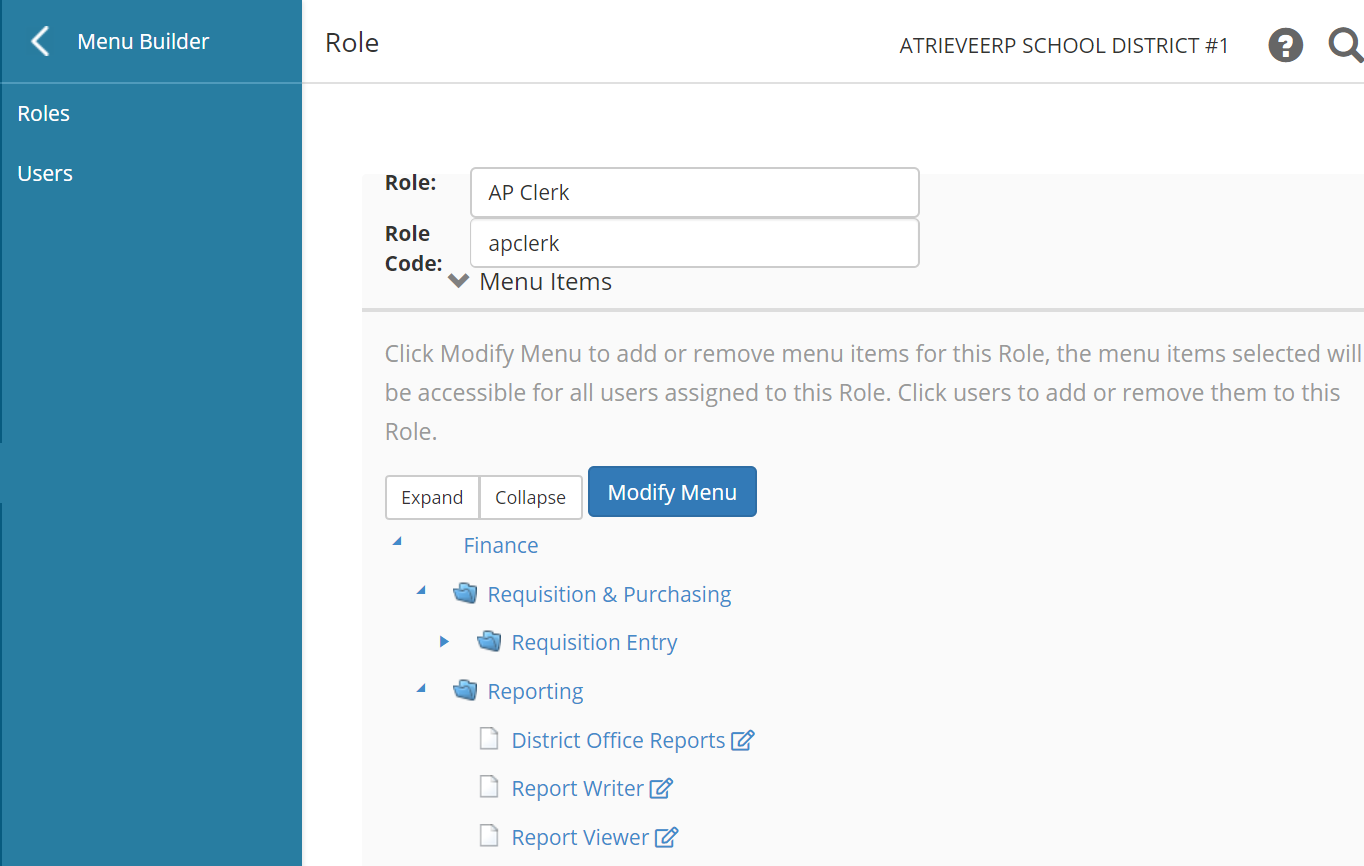
Click on Finance > Requisition & Purchasing to see if the users Role has access to Purchasing Card. The example below indicates there is no Requisition & Purchasing option for Purchasing Cards for the AP Clerk role:
-
Click on Modify Menu and then search for Finance to find options available for Finance modules.
-
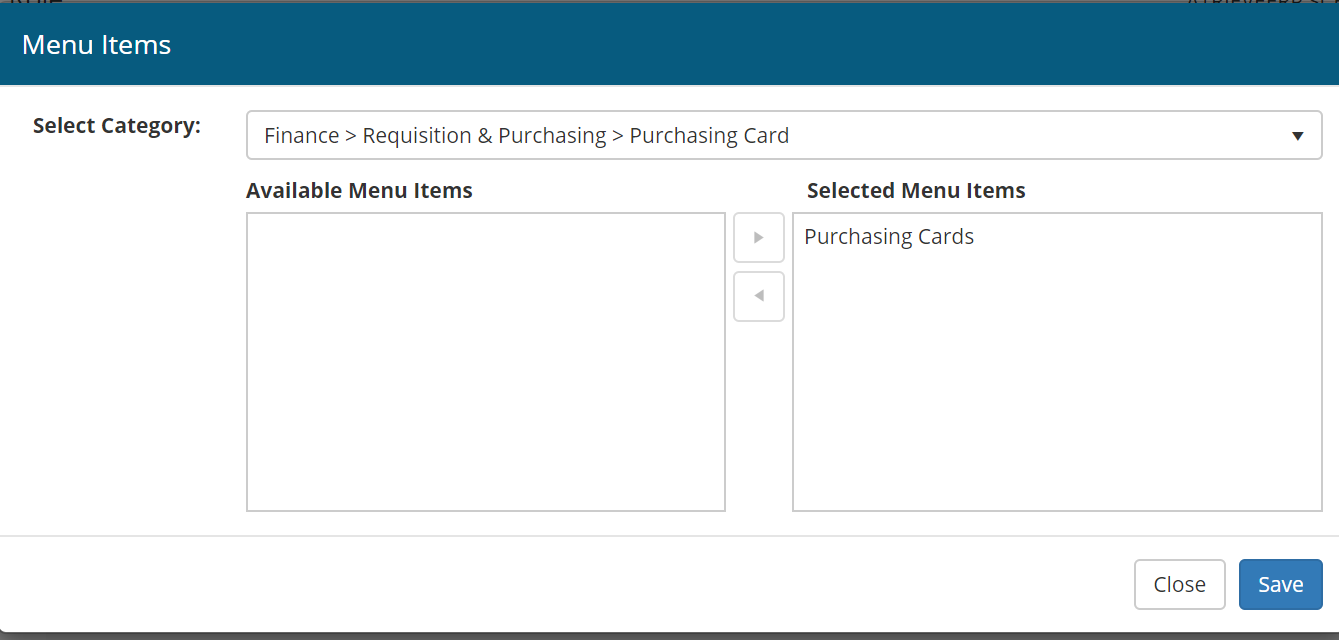
You will be shown a Finance > Requisition & Purchasing > Purchasing Cards option and click on it to select.
-
Once selected, it will show you any options available for Purchasing Cards. Click on Purchasing Cards to select it and click on the arrow to move it into the "Selected Menu Items" list so it will be added to this roles menu.
-
Click Save to save the selection, Close and Save again to save the Role Menu changes.
-
Repeat this for any roles your Purchasing Card users are in so they will have the Purchasing Card menu options in their Finance portal list. Alternatively, you can create new Role for Purchasing Card and add all users using Purchasing Card into this one role in Menu Builder. This is useful if some of your existing Roles include users that don't need access to the Purchasing Card module.
You are ready to start using the new Purchasing Card module.