
When all lines of a requisition are refused by an Approver or Authorizer the cart is unlocked for editing and the originator of the requisition is notified.
-
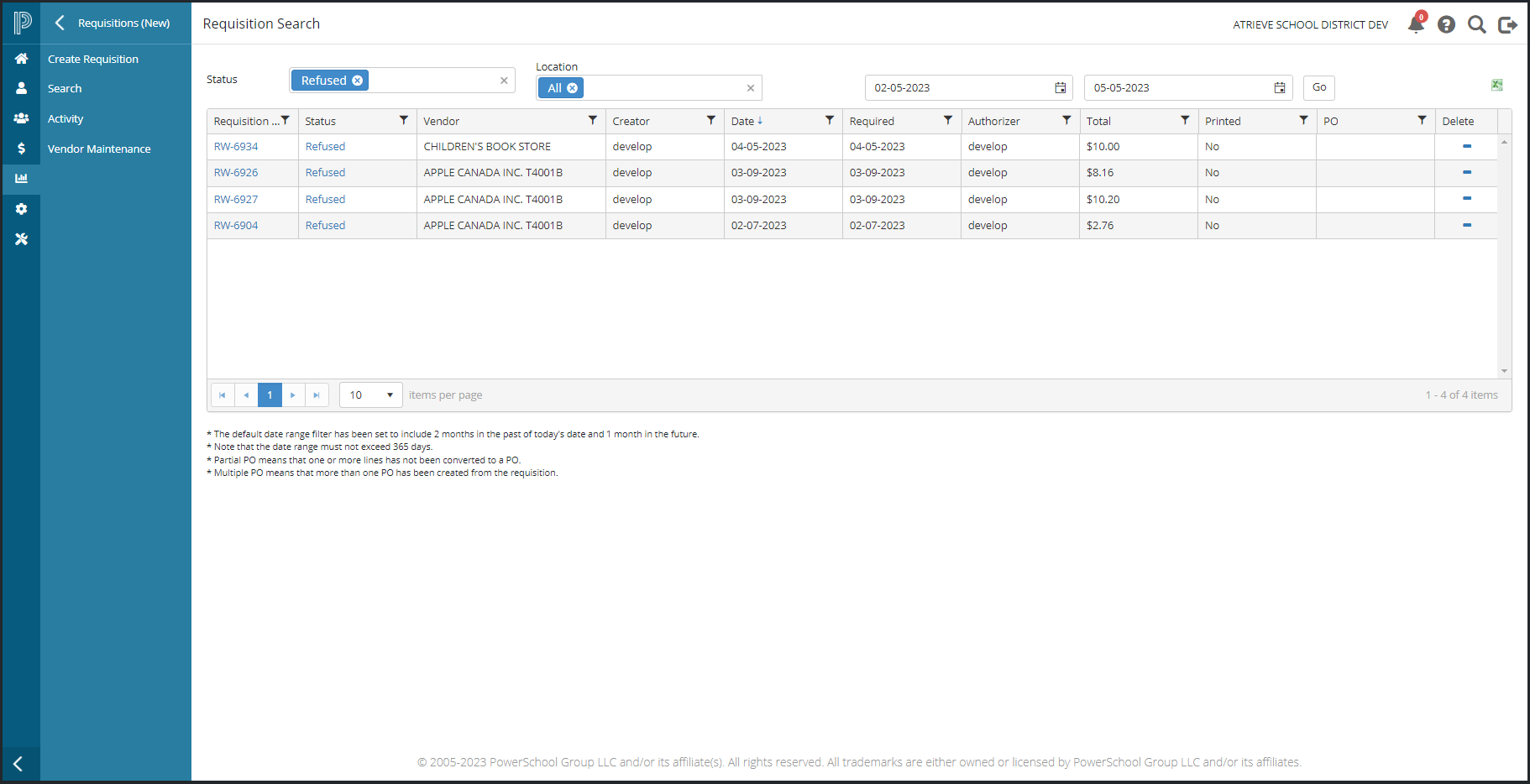
As the originator, to access the refused cart, navigate to Finance > Requisitions & Purchasing > Search
-
Locate the refused requisition and click on the ‘Refused’ hyperlink in the status column and the shopping cart page will open.
-
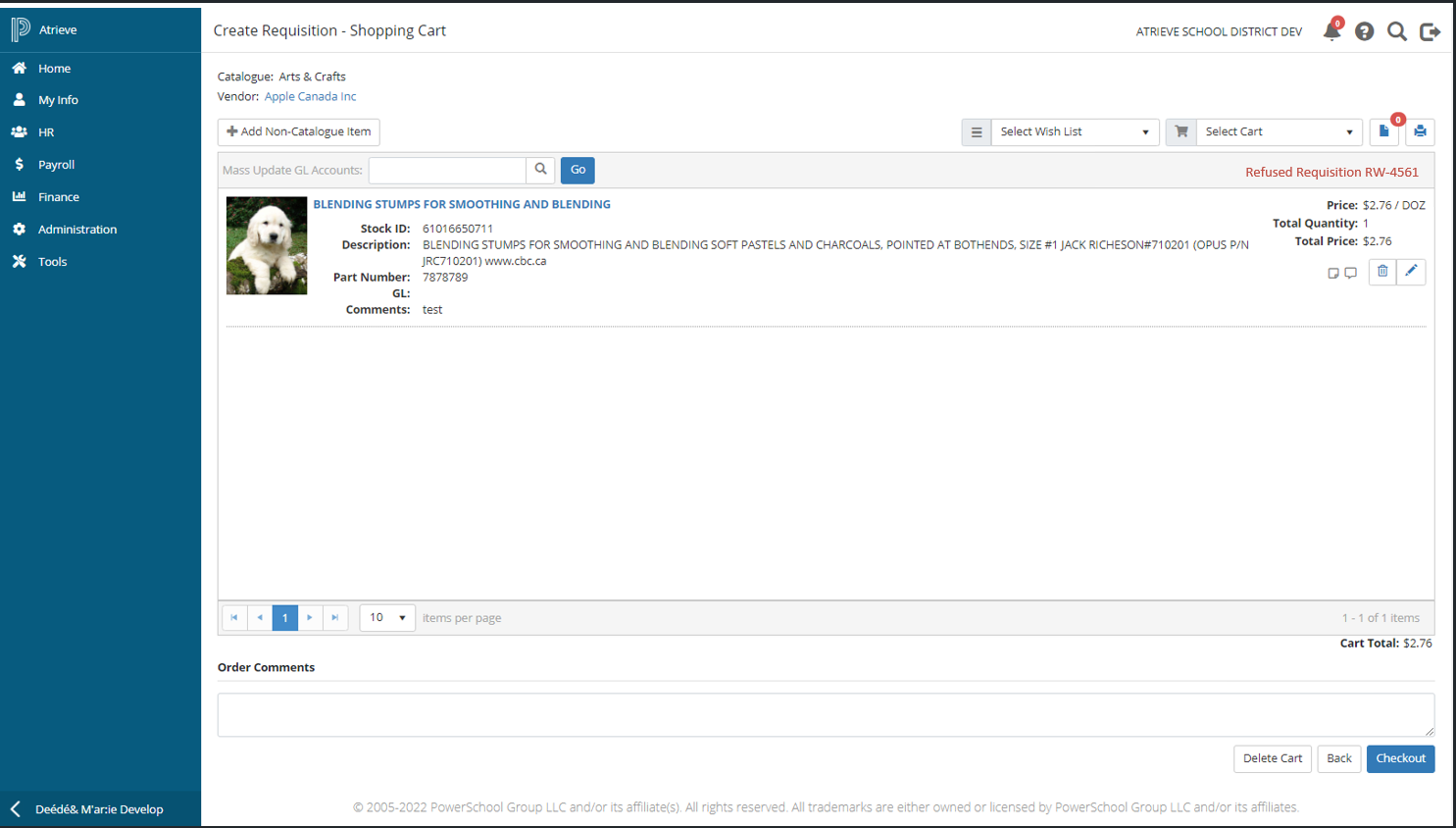
When a refused cart is unlocked for editing, the text ‘Refused Requisition’ displays along with the requisition number at the top right of the grid table.
-
The originator can then modify the requisition and resubmit for approval (Checkout) or Delete the Cart.
Additional Information about Refused Requisitions
-
When all lines are refused the status 'Refused' displays in Requisition Search and the status text is a hyperlink to the unlocked cart.
-
When at least one line is refused but not all lines are refused, then the status 'Approved' displays in Requisition Search and the cart is not unlocked for editing.
-
When at least one line in the requisition is refused but the remaining lines are approved and the approved lines are converted to a purchase order in Buyer Processing then the status will be Refused but the refused status text will not be a hyperlink and the cart is not unlocked for editing.